Every few weeks a merchant finds their own product photo on someone else's listing and goes looking for a way to lock the images down. The honest answer comes in two parts: you can close the two easiest routes in about a minute, and you cannot close the rest, because a browser's entire job is to send your images to strangers' computers and display them.
That is not a reason to skip it. It is a reason to know which measure does what.
What each measure actually stops
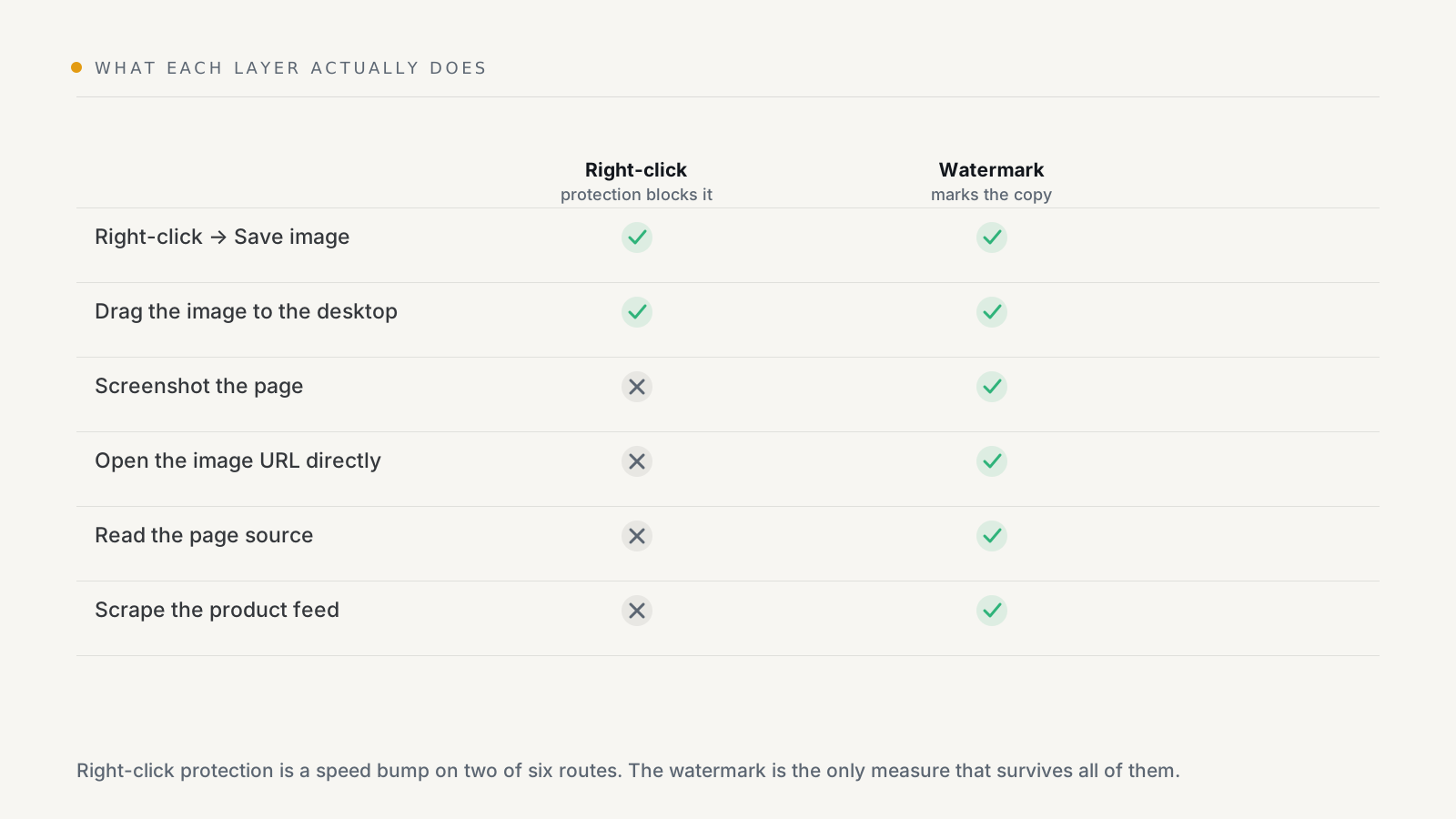
Right-click protection and watermarking are often sold as the same thing. They are opposites:
- Right-click protection is prevention, and it is partial. It raises the effort for a casual visitor who would have saved the image in two clicks. Any determined person walks around it.
- A watermark is attribution, and it is total. It does not stop a single one of those six routes. It means that whichever route someone takes, the file they end up with says who it belongs to.
If you only do one, do the watermark. If you do both, do them in that order.
Turning on right-click protection without touching theme code
Watermarkly includes it from the Starter plan. There are two steps, and
neither involves editing theme.liquid:
- In the app, open Protection and switch on right-click protection.
- In your Shopify admin, go to Online Store → Themes → Customize, open App embeds in the left sidebar, switch on Image protection, and save the theme.
That second step is what puts the script on your storefront. Because it is a theme app embed rather than pasted code, you can switch it off from the same place — and so can the app, which matters more than it sounds. If you ever paste a protection snippet into a theme by hand, turning the feature off in the app does nothing: the code keeps running until you find it and delete it.
This needs the Online Store sales channel, since it runs on your storefront. Everything else in Watermarkly — watermarking, badges, undo — works without it.
What the script does, and what it deliberately leaves alone
It blocks two browser events on your images: the context menu (right-click)
and dragstart (dragging an image out to the desktop). It applies to images,
<picture> elements, SVG, video, and elements with a background image — and,
because themes wrap product media in zoom containers and link wrappers, to those
wrappers too, so it still works when the click lands on the overlay rather than
the <img> itself.
Just as important is what it does not do. A lot of "disable right-click" snippets cancel the context menu across the whole page. That takes away:
- Open link in new tab on every link in your store.
- Paste and spell-check in your search field and contact form.
- The keyboard context-menu key, which is how some customers using assistive technology operate a page at all.
Blocking the whole document to protect the product photos is an accessibility regression on your own storefront, paid for by every customer, to inconvenience the one person copying your image. Watermarkly narrows to media, so right-click still behaves normally everywhere else.
Why it loads in the page head
A small detail with a real consequence. Protection scripts are usually placed at
the end of <body>. A script there sits after the theme's stylesheets, and a
browser will not run an inline script while a stylesheet is still loading — so
on a slow connection the handlers are unbound for the whole stylesheet-loading
window.
That window overlaps exactly with the moment your hero and product images have already painted and are sitting there, right-clickable. The feature would be off precisely when a first-time visitor is most likely to use it. Watermarkly's embed targets the head instead, so the handlers are attached before the images can be interacted with.
How it turns off
The app writes a single flag your theme reads, and the embed renders the script only while that flag is true. The flag is true only when you have it switched on and your plan includes it.
So a downgrade from Starter to Free revokes protection on its own — you do not end up with a feature you stopped paying for still running on your storefront, and you do not have to remember to go and remove anything. The same applies when you toggle it off in the app: the storefront stops rendering the script on the next page load.
The storefront never calls the app to decide this, either. The script is inline and dependency-free, so your product pages do not wait on our server to render — if the app were down, your store would not notice.
Set expectations honestly with yourself
Right-click protection will stop a shopper idly saving a picture. It will not stop:
- a screenshot — no web page can;
- opening the image URL directly, which is one step from the page source;
- reading the page source or using browser developer tools;
- scraping your product feed, where images are listed as plain URLs;
- anyone with JavaScript disabled.
None of those are defects in the implementation. They are what a web page is.
Which brings it back to the watermark: it is the only measure on the list that still does its job after the image has been taken. Right-click protection makes the taking slightly harder; the watermark makes the taking pointless, because the copy carries your name into wherever it is posted.
If you have not set one up yet, start with how to watermark Shopify product images, then use placement, opacity and font to get a mark that stays legible in a screenshot without ruining the photo.
Both live in the same app: Watermarkly on the Shopify App Store. Watermarking starts on the Free plan; right-click protection is included from Starter, at $3.99 a month.