Watermarking one product is a settings exercise — pick a mark, check the preview, apply. Watermarking three thousand is a different job. Every image is a download, a backup, a composite and an upload, so a catalogue-wide run is a long-running process that can partly fail, and the questions that matter are: how much will it do at once, what happens to the failures, and how do I get back?
If you have not set the mark itself yet, start with how to watermark Shopify product images and come back.
Get three things right before you start
- Check the mark at thumbnail size, not full size. Apply to one product first, then look at it in a collection grid on a phone. A correction after a 3,000-image run costs you a second 3,000-image run.
- Decide the gallery-position question. Keep image in its original gallery position keeps your hero image at slot one, because a watermarked image is new media and new media lands at the end. It adds a reorder step per image — worth it on a catalogue where the first photo matters, which is most of them.
- Know your allowance. A bulk run consumes your monthly image quota, and so does a re-apply. Both are counted per image, not per product, so a catalogue of 400 products with four photos each is 1,600 images.
Choose the scope
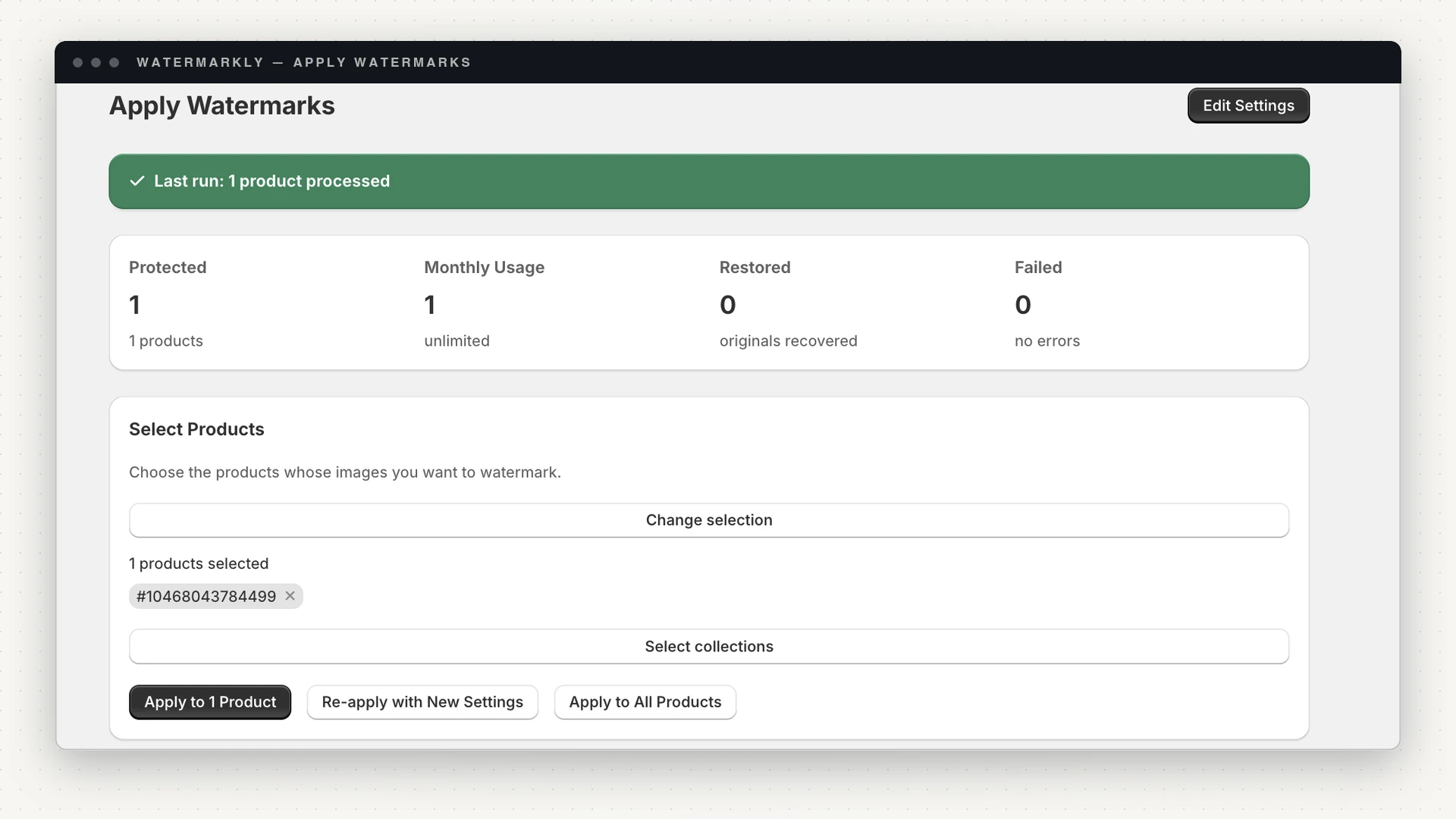
There are three ways to point a run at your catalogue:
- Selected products — the product picker, on every plan. Best for a first pass or a single brand within a larger store.
- Selected collections — Growth and above. The job expands each collection into its products, so "watermark everything in Outerwear" is one action. If a collection is too large for the app to read completely, the run fails and says so rather than quietly watermarking a subset.
- All products — every image on every product. This one asks for confirmation and tells you how many images you have left in the month before you commit.
There is also Re-apply with New Settings, which processes already-watermarked images again using your current mark. It is how you fix a mark you don't like — and it costs the same as a first apply, so change the settings once and re-apply once.
What the plan limits actually mean
Two separate limits apply to a bulk run, and mixing them up is the usual source of surprise:
| Free | Starter | Growth | Enterprise | |
|---|---|---|---|---|
| Products in a single job | 20 | 250 | 5,000 | 30,000 |
| Images per month | 50 | 500 | 5,000 | Unlimited |
| Apply by collection | — | — | Yes | Yes |
| Scheduling | — | — | Yes | Yes |
| Undo retention | 7 days | 30 days | 60 days | 90 days |
Products per job is how much one run may cover. Exceed it and the run is refused with the limit named, not silently truncated. Images per month is your allowance across all runs in the billing month; hit it and jobs stop until the month rolls over or you upgrade.
If a catalogue is too large for a single run even at your tier, the app says so and points you at the fix: apply by collection, or select products in smaller batches.
Watch the run
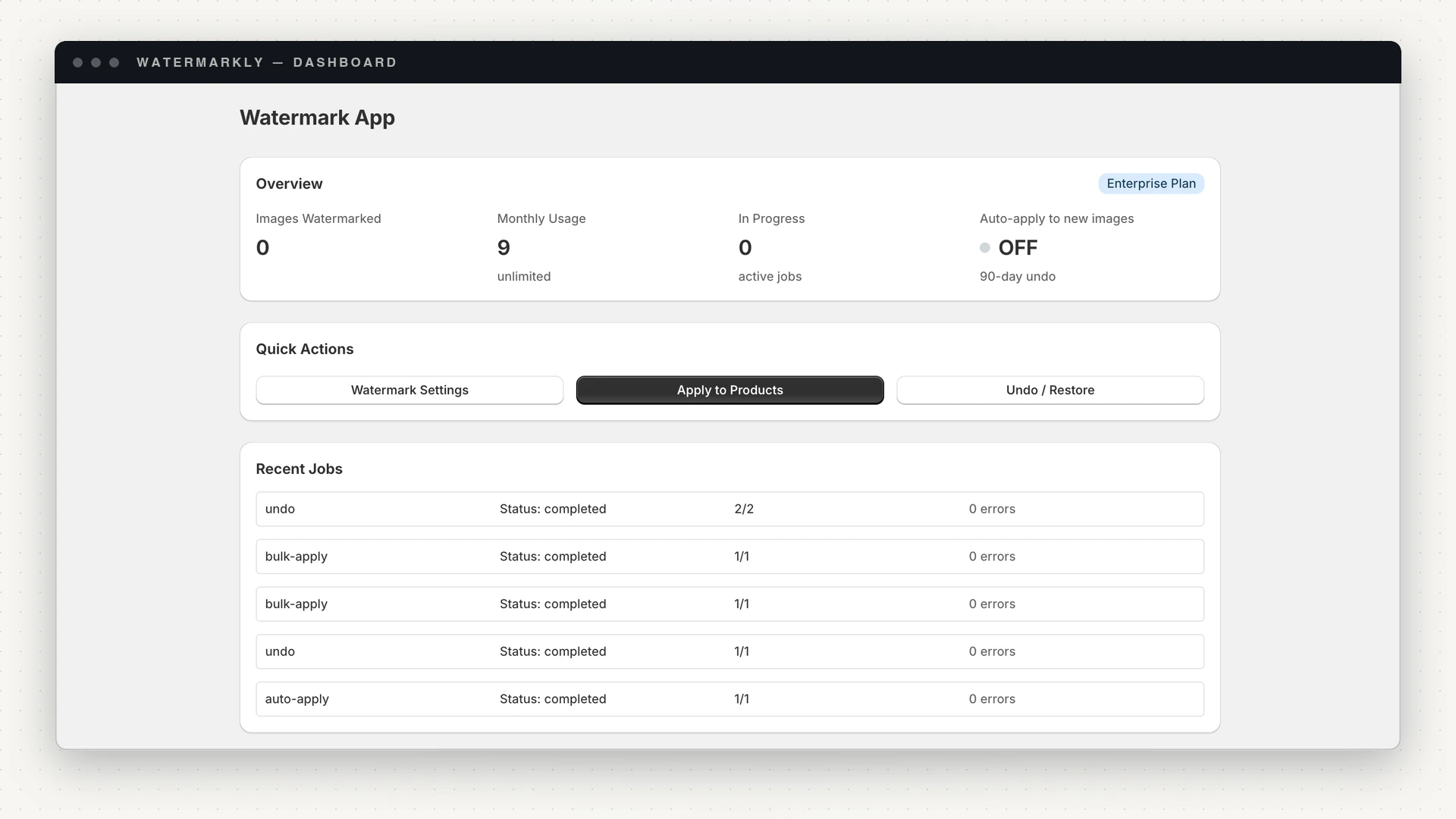
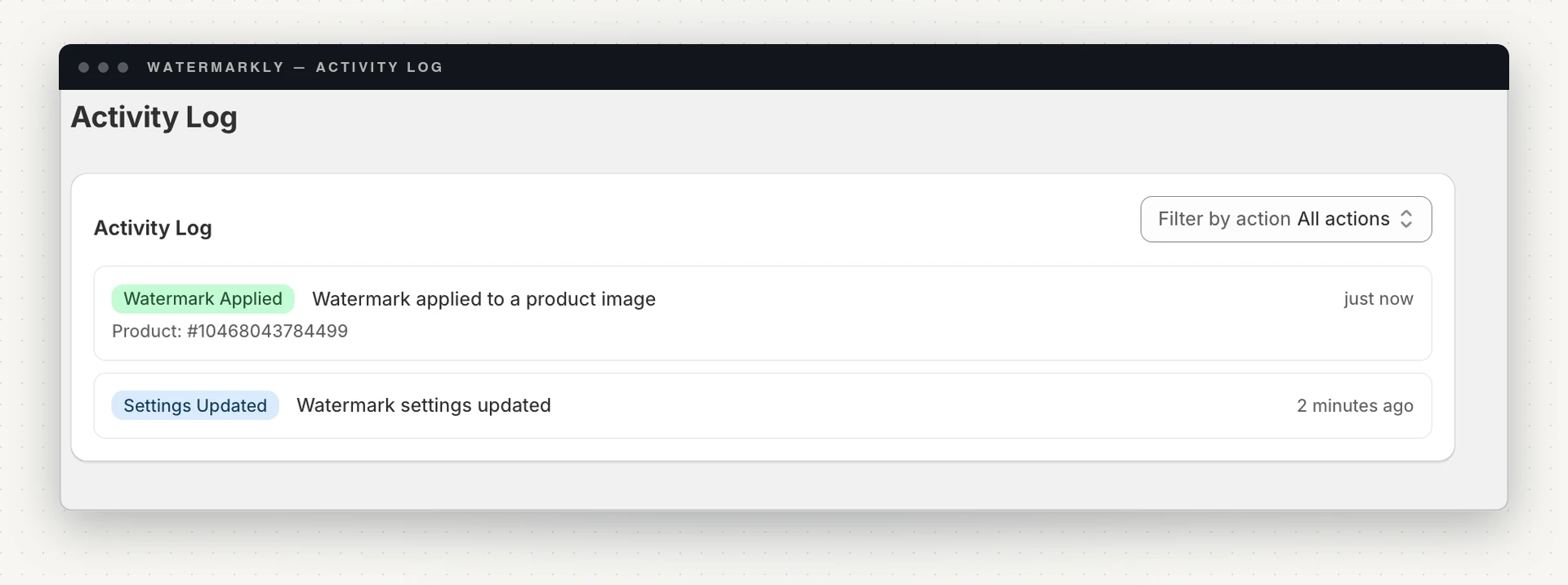
A run is a tracked job, not a fire-and-forget request. While it is going you get live progress; when it finishes you get a summary of how many images were watermarked, skipped and failed. The dashboard keeps the recent jobs with their status and error counts, and the activity log keeps the detail.
Three things this buys you on a big catalogue:
- A page refresh doesn't lose the run. Progress lives with the job, not the browser tab.
- A deploy or restart doesn't lose the run. In-flight jobs are drained rather than dropped, and a job that stalls is recovered rather than sitting there.
- A transient Shopify error doesn't kill the run. Image operations are retried with a backoff before anything is recorded as failed.
When images fail
Some will, on a big enough catalogue — a source image that is corrupt, an unusual format, a Shopify hiccup that outlasts the retries. A failed image does not stop the run.
Failures are collected on the Undo / Restore page, where you can:
- Retry all — re-queue just the failed images with your current settings. Their backups are kept either way, so a retry is safe.
- Dismiss all — permanently delete the failed records and the stored original backups they point to. This one cannot be undone; use it only once you are sure you do not want those originals.
Stop doing it by hand
Once the catalogue is done, the ongoing work is new photography. Two features cover it:
Auto-apply (Starter and above) watermarks images in the background as they are uploaded to products. It skips media that is already watermarked, so it cannot double-mark an image, and it stands down while an undo is running so the two never fight. Turn it on once and new uploads take care of themselves.
Scheduling (Growth and above) queues a run against all or selected products for a date and time — useful for putting a catalogue-wide re-apply on a quiet night rather than during trading hours.
Undoing a bulk run
Everything a run touched can be put back, because every image was copied to backup storage before it was modified. You can restore a single image, everything in a collection, or every watermarked image in the store.
The limit is time, not scope: originals are kept for 7 days on Free, 30 on Starter, 60 on Growth and 90 on Enterprise. After that the backup is gone. A watermark composited into a JPEG cannot be subtracted, so the retention window is the real safety net — decide within it.
A safe order of operations
- Set the mark, check the live preview.
- Apply to one product. Look at it on the storefront, on a phone, in a grid.
- Adjust and re-apply to that one product until it is right.
- Run a collection — a few dozen products — and look again.
- Run the catalogue, with Keep image in its original gallery position and Verify each image before replacing the original both on.
- Turn on auto-apply so new uploads stay consistent.
Steps 2 to 4 cost a handful of images from your monthly allowance. Skipping them costs a full re-run.
Ready to run one? Watermarkly is on the Shopify App Store. Free covers 20 products per job and 50 images a month — enough for steps 1 to 4 above before you decide which tier your catalogue needs.