A watermark does not stop anyone copying your photo. Anything a browser can display, a visitor can capture. What a watermark does is make the copy identifiably yours wherever it ends up — on a competitor's listing, in a marketplace feed, on someone else's Instagram grid. That is the honest case for it, and it is a good enough one for most stores.
The cost is equally honest: the mark sits on top of a product a shopper is trying to look at. So the decision is not really "should I watermark" — it is which of the three methods below, at what strength, and can you undo it.
The three ways to watermark a Shopify product image
| Method | What it changes | Survives off your site? | Reversible | Works on a whole catalogue |
|---|---|---|---|---|
| Edit each file by hand | The image file | Yes | Only if you kept the originals | No |
| Overlay it in your theme | The page, not the file | No | Yes, instantly | Yes |
| Apply it in bulk with an app | The image file, on every product | Yes | Yes, from backups | Yes |
They are not competing versions of the same thing. The first two solve different problems from each other, and only one of the three does anything at all once the image leaves your storefront.
Method 1 — edit the files by hand
Open each photo in Photoshop, Affinity, Canva or even Preview, place your mark, export, re-upload to the product.
Right when: you have twenty images, you want full art direction over where the mark sits on each one, and you are doing it once.
The trap: Shopify has no "original" to give you back. Re-uploading an edited file creates new media and the old file is gone, so you are the backup. Keep the untouched exports somewhere you will still have them in a year, before you upload anything.
Method 2 — overlay it in your theme
A pseudo-element or a Liquid snippet draws your logo over the product image in the template. It costs nothing, applies everywhere at once, and you can delete it in a second.
It also protects nothing. The overlay is a separate element painted near the image; the file sitting on Shopify's CDN is untouched. Right-click → Save Image, or open the image URL directly, and you get the clean original. The same clean file is what Google Images indexes and what any scraper collects.
Use a theme overlay as a visual badge on your own storefront — a sale flash, a "handmade in Jaipur" stamp. Do not use it as protection, and do not use it if the point is to be recognised somewhere else.
Method 3 — watermark the file in bulk
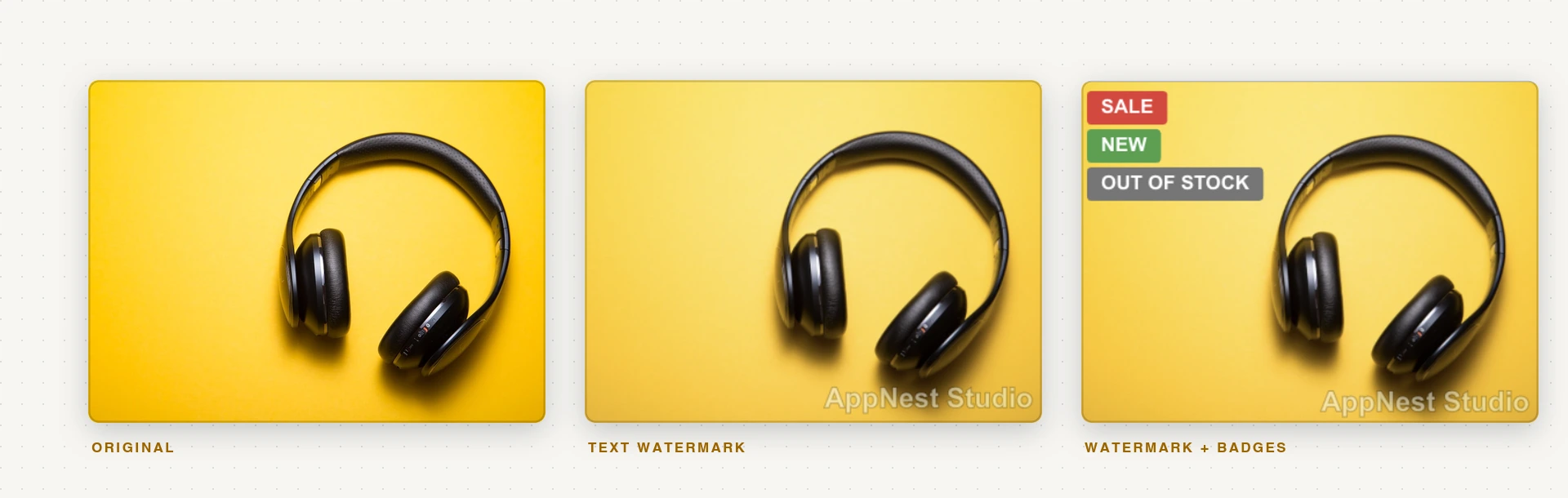
This is the one that changes the artefact: the app reads each product image, composites your mark into the pixels, and puts the new file back on the product. Every copy of that image from then on — scraped, screenshotted, right-click saved, pulled through a feed — carries the mark.
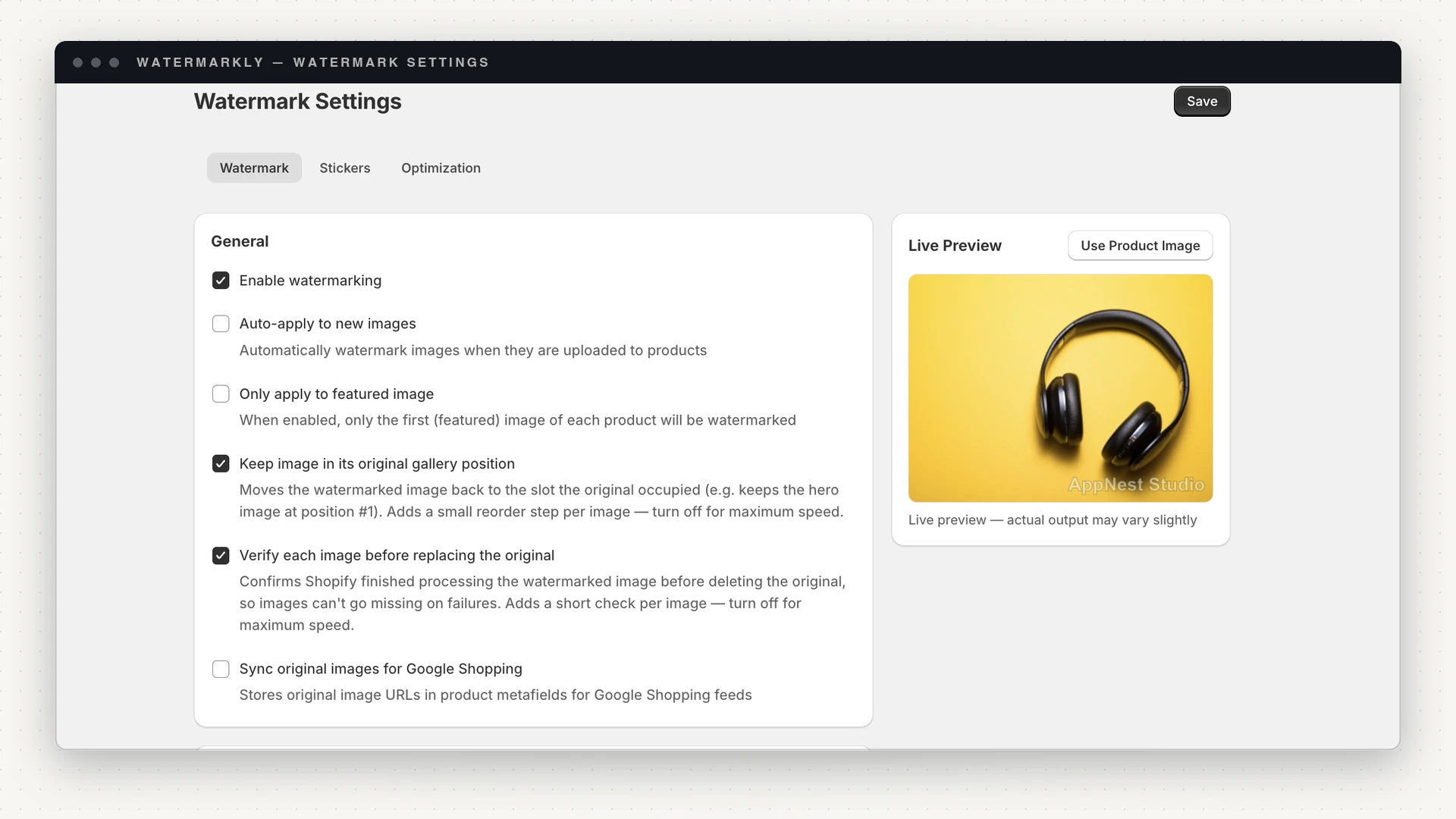
In Watermarkly the controls are:
- Text or logo. Text on every plan; a logo you upload (PNG, JPEG, SVG or WebP) from Starter.
- Typeface and weight. Ten font families, normal or bold, any size. The list is deliberately short: it holds only the faces the server can genuinely render, so the preview and the finished image agree.
- Colour and opacity. Ten presets plus a full picker, with opacity and scale as percentages.
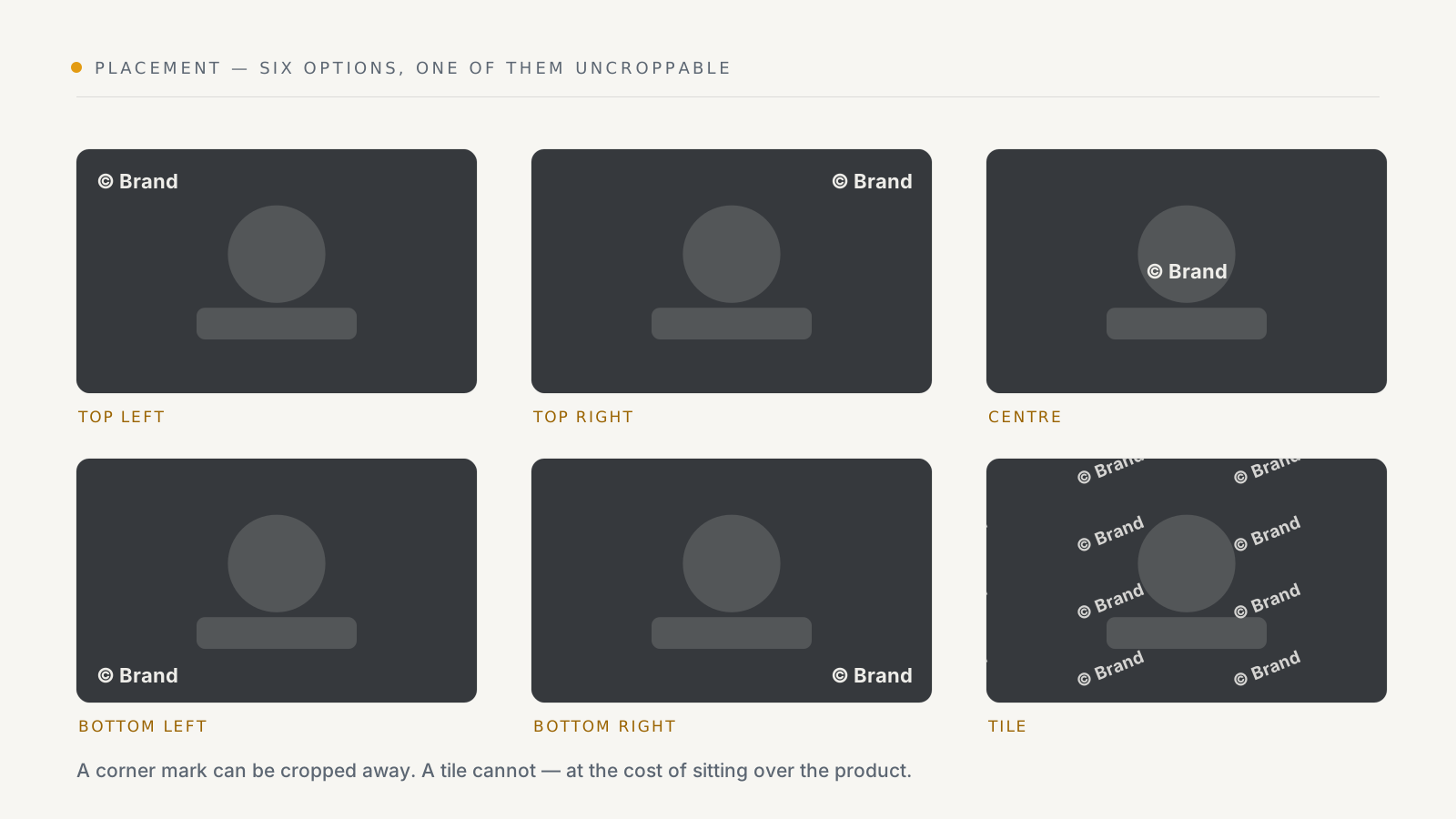
- Placement. Top left, top right, centre, bottom left, bottom right, or tiled across the whole image — plus rotation and an X/Y margin.
Choosing text, position and opacity
A few things that hold up in practice:
- A corner at half opacity is the default for a reason. Watermarkly ships
with
© Your Brand, white, bold, bottom-right, 50% — legible enough to read in a screenshot, quiet enough that it does not fight the product. - A corner mark is a croppable mark. If your photos are being lifted and re-cropped, tile is the only placement that survives, and you should accept that it will be visible on your own product page too.
- Watch the focal point. Bottom-right lands on the product itself in a lot of packshots. Move it, or raise the margin, rather than dropping the opacity until the mark is useless.
- White or black, rarely a brand colour. A mark has to stay readable across a whole catalogue of different backgrounds. That is what the neutral presets are for.
Check it on the live preview before you run anything. It renders with the same font stack the server uses, so what you see is what gets composited in. There is more detail on each of these choices in watermark placement, opacity and font.
What actually happens to your original
This is the part worth understanding before you press apply, because it is not an in-place edit.
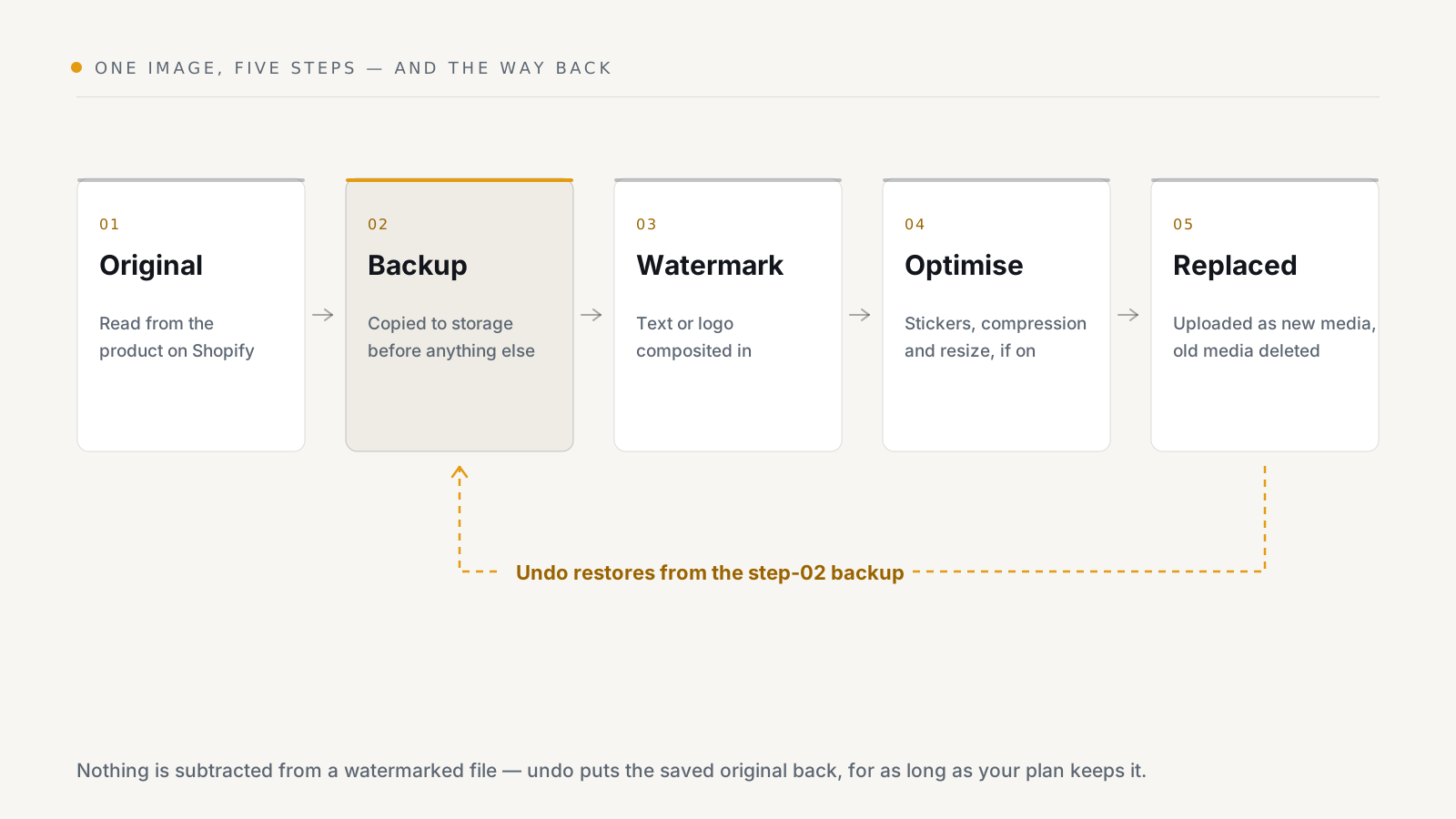
Three consequences follow from that last step, and they surprise people:
- The image URL changes. New media means a new CDN URL. Anything that hard-links the old one — a sent campaign, a marketplace feed, a blog post — points at a file that no longer exists.
- New media lands at the end of the gallery. That is why Keep image in its original gallery position exists: it moves the watermarked file back into the slot the original held, so your hero image stays at position one. It adds a reorder step per image, so it is a toggle rather than a default.
- Deleting the original is the risky moment. Verify each image before replacing the original waits for Shopify to confirm it has finished processing the new file before the old one goes. Leave it on unless you are watermarking a very large catalogue against the clock.
Applying it across the catalogue
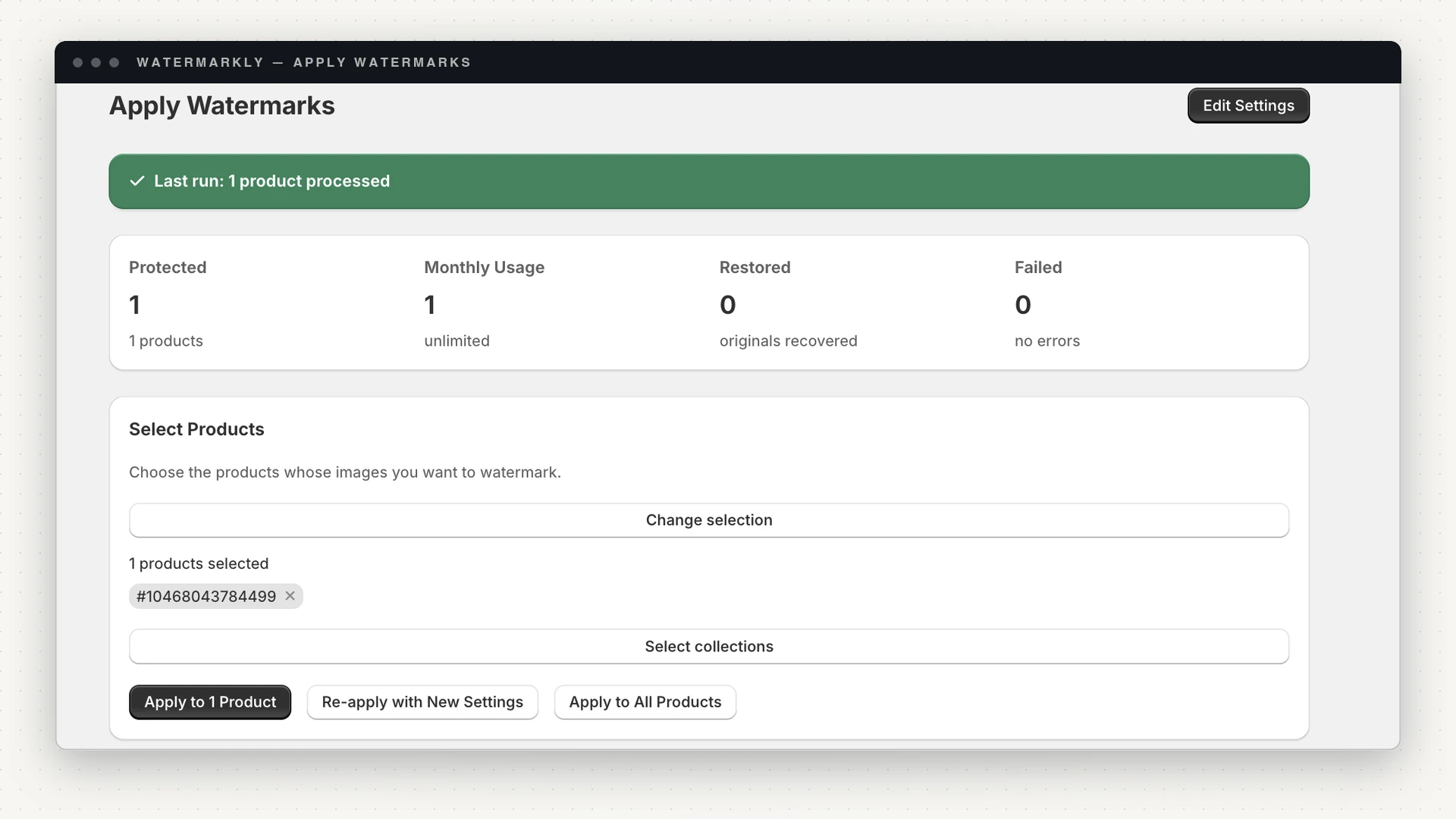
You can point a run at picked products, at collections (Growth and above), or at the entire catalogue. Two things make this safe to do on a real store:
- Every run is a tracked job. Progress, per-image results and an error count, with failures collected so you can retry just those.
- Confirmation before a catalogue-wide run, including how many images are left in your monthly allowance — because a re-apply costs the same as a first apply.
Two ways to stop doing it by hand: auto-apply (Starter and above) watermarks new images in the background as they are uploaded to products, skipping anything already watermarked; scheduling (Growth and above) queues a run against all or selected products for a date and time.
Running this across a real catalogue — job limits, retries, allowance — is its own subject: see how to bulk watermark a whole Shopify catalogue.
How to undo a watermark
A watermark composited into a JPEG cannot be subtracted — there is no clean copy hiding underneath. Undo means restoring the backup that was taken before the composite, which is why the retention window on your plan is the number that matters.
Watermarkly restores a single image, everything in a collection, or every watermarked image in the store. Originals are kept for 7 days on Free, 30 on Starter, 60 on Growth and 90 on Enterprise. After that the backup is gone and the watermarked file is what you have.
If you think you might change your mark, decide within the window — or keep your own copies of the source files, which is good practice regardless of the tool.
Before you watermark the whole catalogue
- Check your Google Shopping feed first. Google Merchant Center has its own rules about what may appear in a product image; read the current image requirements before you watermark a catalogue that feeds it. On Growth and above, Watermarkly can store each original image URL in a product metafield so a feed can reference the un-watermarked file.
- Run one product, then look at it properly. On the live storefront, on a phone, at thumbnail size in a collection grid. A mark that reads fine at 1600px can turn into grey mush at 200px.
- Know what right-click protection is and isn't. Watermarkly includes it from Starter as a theme app embed you switch on in the theme editor — it blocks the context menu and drag-to-save on images only, leaving the rest of your storefront's right-click behaviour alone. It is a deterrent against the casual copy. It does not stop a screenshot, and it does not stop anyone who opens the page source. Treat it as a speed bump on top of the watermark, never instead of it — what it does and doesn't stop, route by route.
- Consider badges separately. SALE, NEW and OUT OF STOCK stickers (Starter and above) are driven by the product's own data — a compare-at price, an added-in-the-last-30-days date, zero inventory — in five shapes. They are a merchandising tool that happens to share the pipeline, not image protection: see adding SALE and NEW badges.
What the plans cover
| Free | Starter — $3.99/mo | Growth — $7.99/mo | Enterprise — $14.99/mo | |
|---|---|---|---|---|
| Images per month | 50 | 500 | 5,000 | Unlimited |
| Products per job | 20 | 250 | 5,000 | 30,000 |
| Undo retention | 7 days | 30 days | 60 days | 90 days |
| Watermark type | Text | Text + logo | Text + logo | Text + logo |
| Also includes | Live preview, activity log | Auto-apply, stickers, compression & resize, right-click protection, before/after | Scheduling, apply by collection, Google Shopping metafields, analytics | Custom sticker uploads, in-app notifications |
Start on Free with one product and the default mark. You will know within ten minutes whether a watermark suits your photography — and if it doesn't, the undo is one click.
Watermarkly is on the Shopify App Store — the Free plan covers text watermarks, 50 images a month and 7-day undo, which is enough to answer that question without paying anything.