Most Shopify themes can put a SALE flash on a product card. It is drawn by the theme, over the image, on your storefront — which means it exists on your storefront and nowhere else. Screenshot the product, share it, run it through a feed, and the badge is gone.
A badge composited into the image file behaves the opposite way. It travels with the photo into Instagram, into a marketplace listing, into a customer's camera roll. That is the version this guide is about.
Theme badge or image badge?
Neither is better. They answer different questions.
| Theme badge | Badge in the image file | |
|---|---|---|
| Updates when the product changes | Instantly | No — the file is fixed until you re-run |
| Visible off your storefront | No | Yes |
| Needs theme code | Usually | No |
| Costs an image operation | No | Yes, one per image |
The rule of thumb: theme badges for state, image badges for reach. If the badge needs to vanish the moment stock runs out, it belongs in the theme. If the badge is doing marketing work in places you do not control, it belongs in the file.
What decides which products get a badge
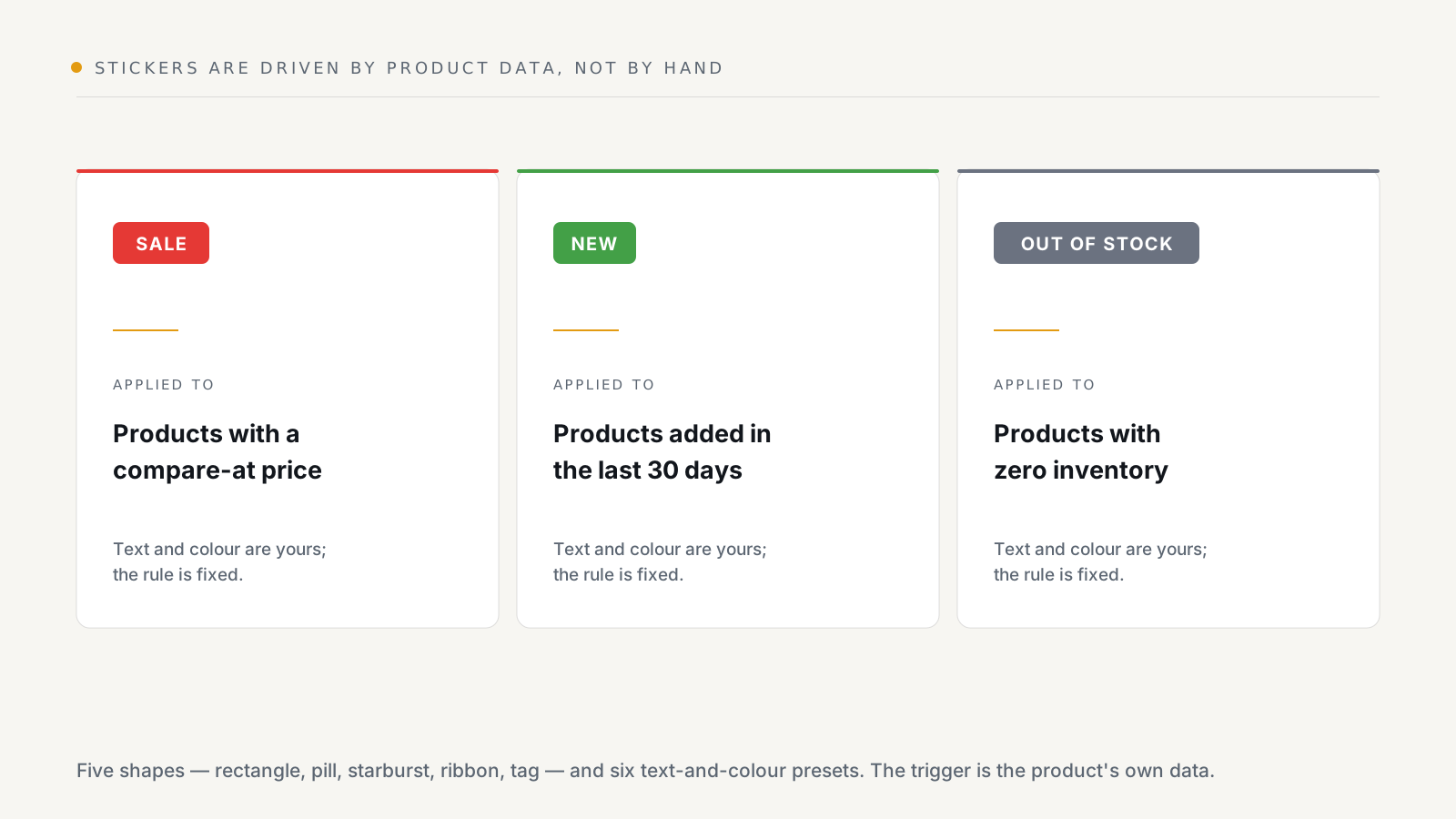
You do not tag products by hand. Watermarkly reads each product and applies:
- SALE — to products with a compare-at price.
- NEW — to products added in the last 30 days.
- OUT OF STOCK — to products with zero inventory.
Each of the three can be switched on or off independently. The rule is fixed;
the text and the colour are yours, so "SALE" can read -30%, CLEARANCE or
Sale in whatever colour your brand uses. Badge text colour is chosen
automatically for contrast against the badge colour, so a pale badge gets dark
text rather than white-on-yellow.
Five shapes
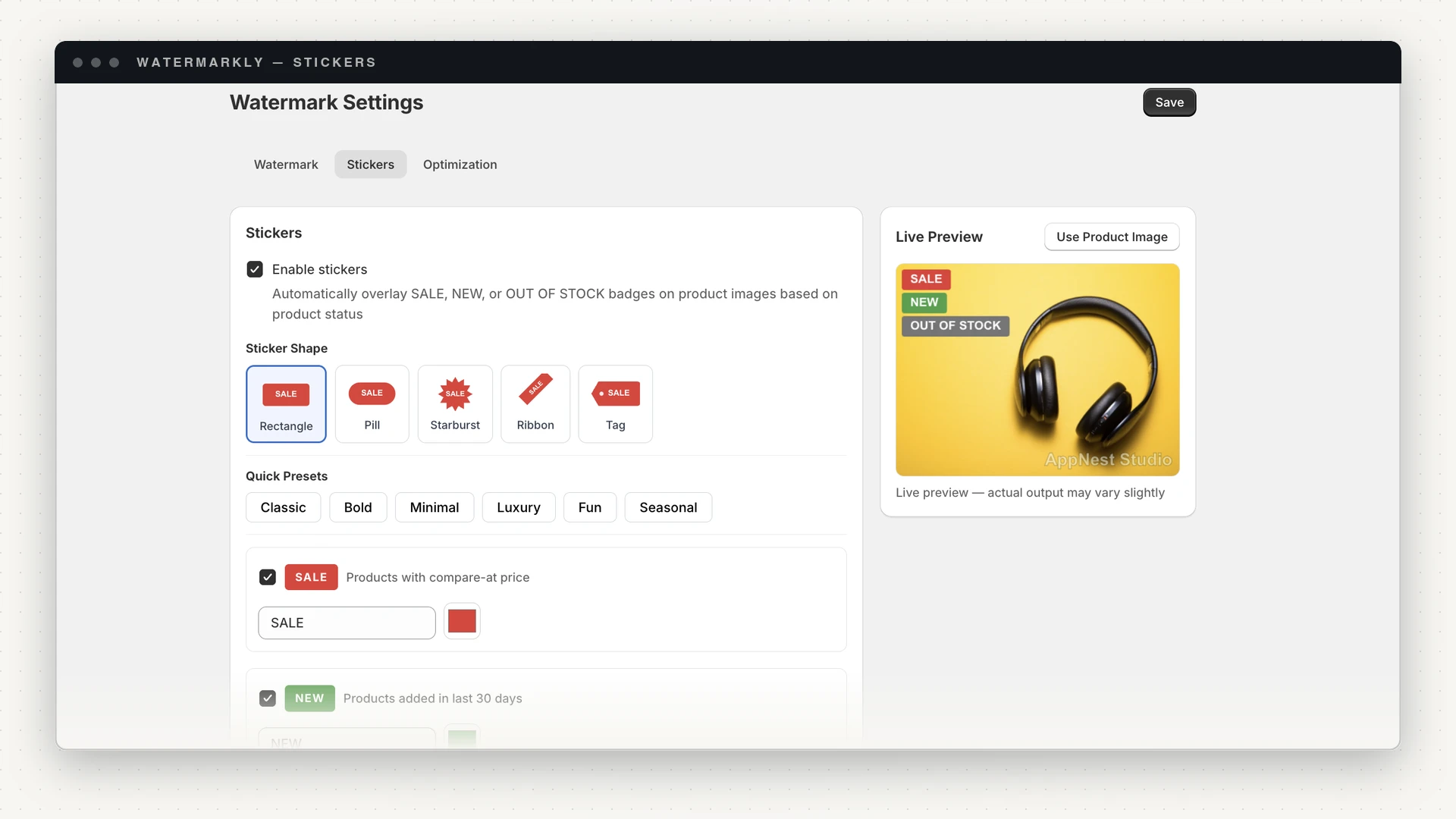
- Rectangle — a rounded block. The safe default; reads at any size.
- Pill — fully rounded ends. Softer, suits lifestyle and apparel photography.
- Starburst — a twelve-point circular burst. Loud on purpose; good for a genuine clearance, bad as a permanent fixture.
- Ribbon — a diagonal band across the top-left corner, with the text running along it. The least intrusive of the five, because it sits in the corner rather than over the product.
- Tag — a price-tag silhouette with a notch and a punch hole.
Pick one shape; it applies to all three badge types, so your SALE, NEW and OUT OF STOCK badges stay visually consistent.
Presets, then your own words
Six presets set the text and colours for all three badges at once — a starting point rather than a constraint:
| Preset | Sale | New | Out of stock |
|---|---|---|---|
| Classic | SALE | NEW | OUT OF STOCK |
| Bold | % OFF | JUST IN | SOLD OUT |
| Minimal | Sale | New | Sold out |
| Luxury | SPECIAL OFFER | NEW ARRIVAL | COMING SOON |
| Fun | HOT DEAL 🔥 | FRESH ✨ | GONE 😢 |
| Seasonal | CLEARANCE | TRENDING | RESTOCKING |
Apply the closest one, then edit the text and colour per badge. Shorter is
better: a badge is read at thumbnail size, and SPECIAL OFFER at 30% scale on a
600px grid image is a smudge.
On Enterprise you can upload your own PNG or SVG to use instead of the generated badges — for a seasonal device or a certification mark that has to be pixel-exact.
Position, size and stacking
- Position uses the same anchors as the watermark: the four corners or the centre. Keep the badge and the watermark in different corners — the app will happily put both in the same one.
- Scale is a percentage of the image, so a badge stays proportionate across a catalogue of mixed image sizes. Padding X and Y nudge it off the edge.
- Order decides which badge draws first when a product qualifies for more than one — a sale item that is also out of stock, for instance. Set the priority you want customers to read first.
One thing to watch: a product can legitimately earn all three badges at once (added recently, has a compare-at price, sold out). Check a product like that in the live preview before running the catalogue.
The catch worth understanding
A badge in an image file is a snapshot of the product at the moment the job ran. It does not update itself:
- A sale ends → the SALE badge stays on the image.
- Stock arrives → the OUT OF STOCK badge stays on the image.
- The product passes 30 days old → the NEW badge stays on the image.
There are two clean ways to handle this:
- Re-apply on a cadence. A re-apply recalculates every badge from today's product data. On the Growth plan you can schedule that run — a weekly or monthly pass keeps badges honest. Remember that a re-apply costs the same against your monthly image allowance as a first apply.
- Restore, then decide. Undo puts the un-badged original back from the backup taken before the job. Originals are kept for 7 days on Free, 30 on Starter, 60 on Growth and 90 on Enterprise.
Use image badges for things that stay true for a while — a seasonal campaign, a product line launch — and leave genuinely live state, especially stock, to the theme.
Running it
Stickers share the pipeline with watermarks, so the mechanics are identical to a normal run: pick products or collections, apply, watch the job, undo if you don't like it. If you have not done one yet, how to bulk watermark a whole Shopify catalogue covers the limits, failures and safe ordering.
Stickers are available from the Starter plan, with custom uploaded stickers on Enterprise. And they stack with the watermark — one run can put your mark in one corner and a SALE badge in another, which is the point: the photo does your merchandising and carries your name, wherever it travels.
Badges start on the Starter plan — Watermarkly on the Shopify App Store. If you only want the watermark for now, the Free plan covers text watermarks with no time limit.