Shopify's admin will let you select orders and act on them. What it will not do is tell you, before you commit, exactly which orders are about to change and exactly what is about to happen to them, and then let you take most of it back.
That gap is where bulk-editing mistakes live. Not in the edit itself, but in the gap between the set you had in mind and the set that actually ran.
The shape of a safe bulk run
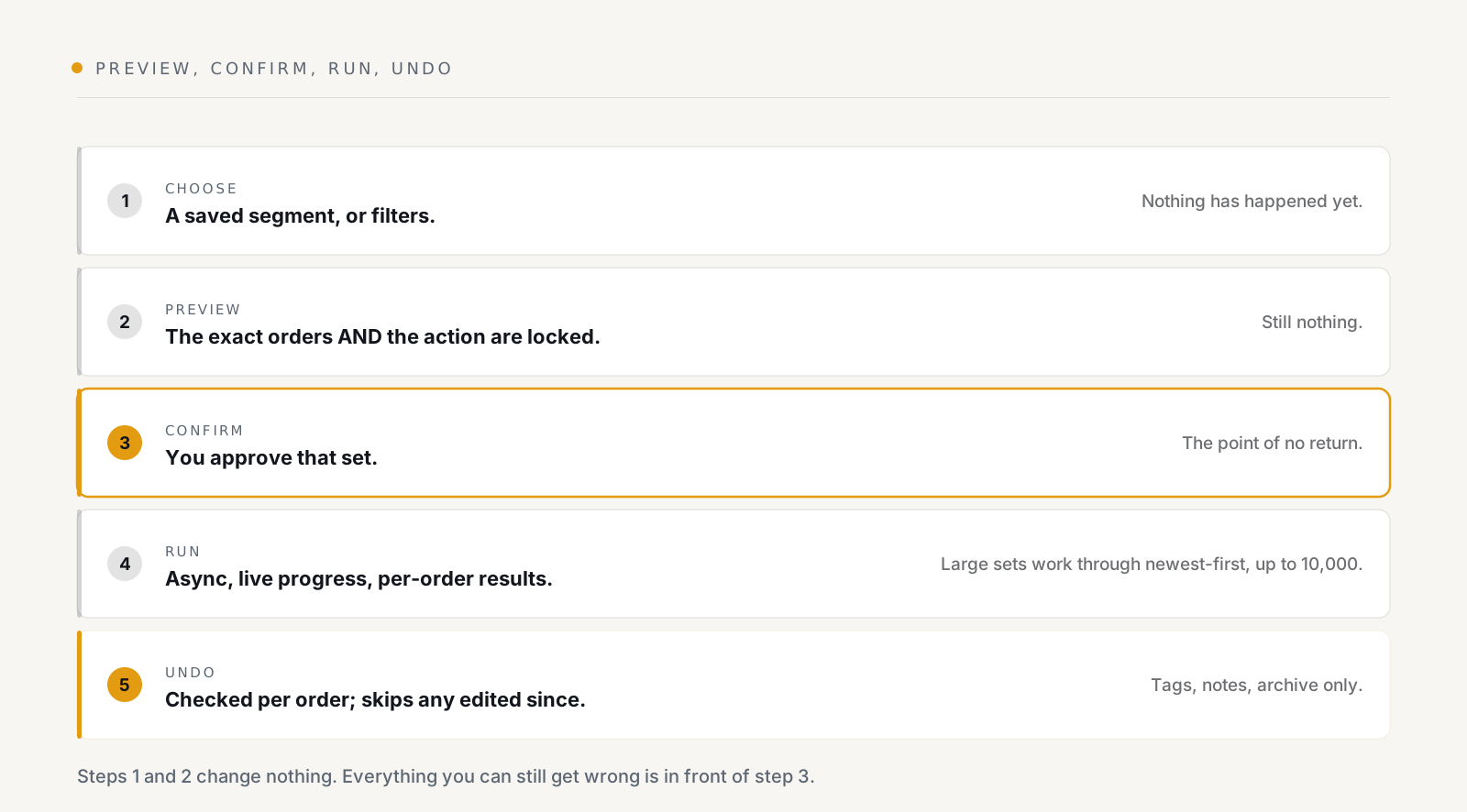
The step that does the work is preview. It locks two things at once: the exact orders, and the action. Not the filter, the orders. So if an order stops matching your filter between previewing and confirming, it stays in the run you approved, and an order that starts matching is not.
That sounds like a detail until you have watched a filter-based bulk tool run against a moving target.
The action is checked the same way. What you submit is compared against what you previewed, and a mismatch is refused, so you cannot preview "add tag" and somehow apply "cancel".
What you can do to a set of orders
Seven actions:
| Action | Notes |
|---|---|
| Add tag / Remove tag | The workhorses |
| Set note | Overwrites the note |
| Archive / Unarchive | Clears the open-orders queue |
| Fulfil | Pro. Digital-only, with tracking and notify options |
| Cancel | Pro. Restocks, but does not refund, does not email the customer |
Cancel is worth reading twice. It restocks the items and stops there. It does not refund the customer and it does not email them. The app says so before you confirm, because "cancel" in everyday language implies both, and in Shopify it implies neither. Refunding is a deliberate, separate act.
What undo covers
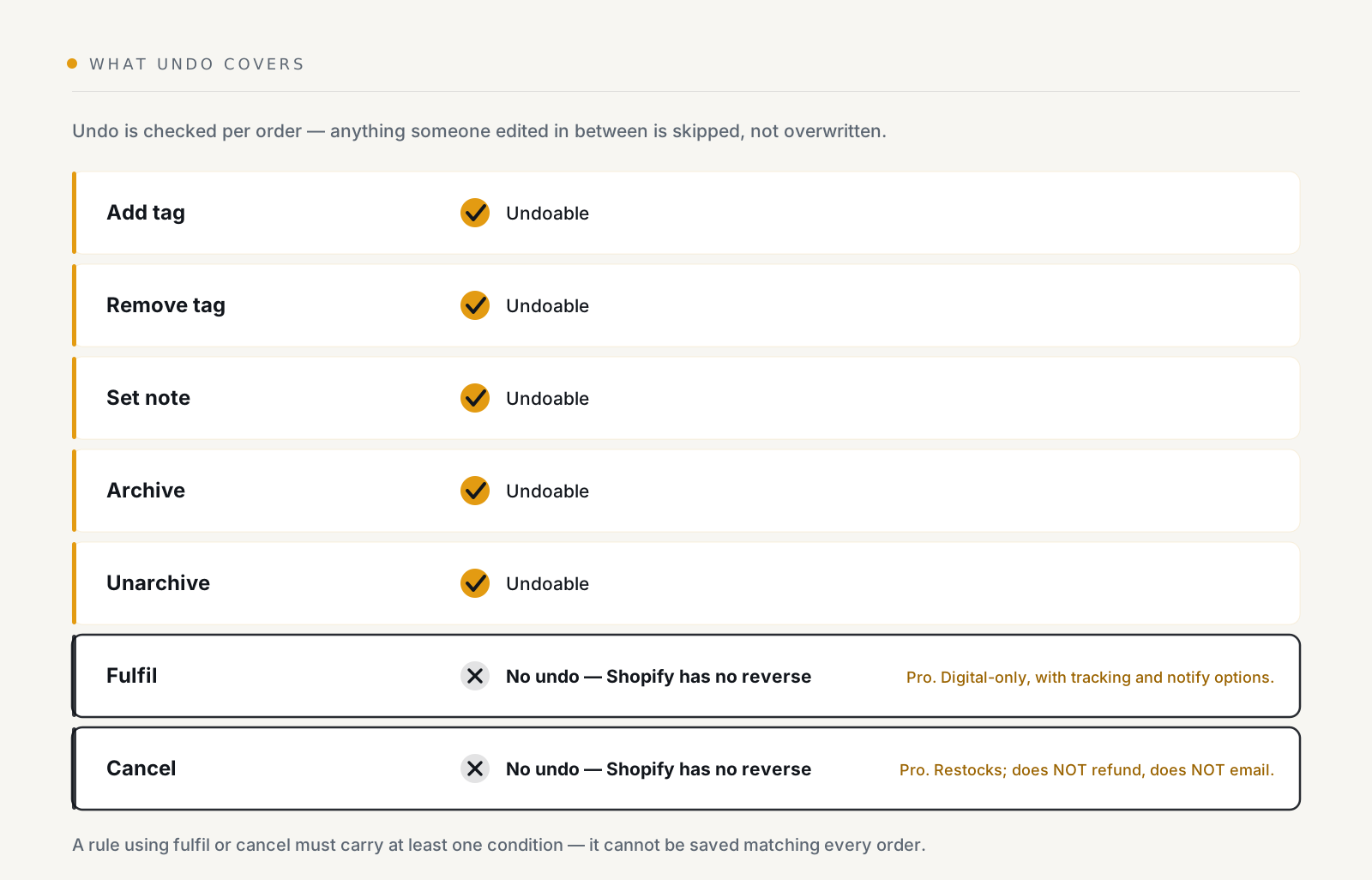
Undo is checked per order. It does not blindly re-apply the inverse; it looks at each order and skips any that someone has edited since the run. So if a colleague re-tagged forty of the two hundred orders you tagged this morning, undo leaves those forty alone and reverses the rest.
That is the behaviour you want, and it is why undo reports its own per-order results rather than just saying "done".
Fulfil and cancel have no undo, because Shopify has no reverse for either. That is not a gap in the app.
Runs bigger than a screenful
There are two run modes, and it is worth knowing which one you are in.
The normal one acts on the exact order IDs you previewed. The app refuses to start without that preview, in as many words: "Preview the orders first, then Apply, so you act on exactly the set you reviewed."
The other is for a set too large to hand over as a list: it works through the orders newest-first, remembering where it got to, so an interruption resumes rather than starting over. Its hard ceiling is 10,000 orders.
Either way:
- You can close the tab. A run does not depend on your browser staying open, and it reports live progress and per-order results you can export.
- Counts are exact, not estimated. The preview uses Shopify's own count, so "1,284 orders" means 1,284.
- A plan cap trims rather than fails. Over your per-run limit and the run says so, "Your plan's per-run limit of N applied, X order(s) were left untouched", instead of half-running and leaving you guessing.
On the Free plan a run covers 100 orders. Starter and Pro have no per-run cap; what they have instead is a monthly operations allowance, 1,000 on Free, 20,000 on Starter, unlimited on Pro.
Two conveniences worth knowing
Apply at schedules a run for later, which is how you tag a sale cohort at midnight without being awake. Run again clones a previous run's settings, so a weekly cleanup is two clicks rather than a re-built filter.
And on Starter and above you can feed a run a CSV of order names, with a per-row tag or note. That is the escape hatch for a set that no filter describes, a list someone sent you from a spreadsheet.
How failures reach you
A failed run emails you on every plan, and posts to Slack on Starter and above. So does hitting a rate cap or a quota stop. That last one matters: an automation that quietly stopped because you ran out of allowance looks exactly like an automation with nothing to do.
Per-order results are kept either way, so a run that half-succeeded tells you which half.
Where to start
Tag fifty orders. Look at the preview, confirm, watch the per-order results, then undo it. Five minutes, and you will know exactly what the tool does before you point it at three thousand orders.
See what OrderNest does, the free plan runs 100 orders per bulk edit, which is plenty to try this on.