Every sync fails eventually. A Google token expires, someone deletes a column, an API call times out, a value in a cell is not one the store will accept. The question that decides whether that costs you anything is how long it takes you to notice.
A sheet that silently stopped updating three days ago looks exactly like a sheet that is up to date. That is the failure mode worth designing against.
What happens on a failed run
Four things, together:
- The sync card turns red with the exact error, not a generic "sync failed".
- An email goes out, on every plan, including Free. Failure alerts are never blocked by your plan's email allowance.
- A Slack message, if you are on Starter or above and have connected it.
- The run is recorded as Failed in Sync history, with what it was doing.
And when the next run succeeds, you get a recovery notice. That is the half people forget to build: knowing it broke is only useful if you also learn it is fixed, otherwise every alert turns into a manual check.
Failures that fix themselves
Two worth knowing, because they used to be the standard way to demonstrate a failure and no longer are:
- Renaming a sheet tab. SyncNest recreates it and repopulates it.
- Deleting a sheet tab. Same. It comes back with its rows.
So a colleague tidying up the workbook is not an incident. Don't spend an afternoon on it.
The one that does not: an invalid value on a push
On a two-way sync, the sheet can contain something Shopify will refuse. The
textbook case is a product Status cell set to something that is not
ACTIVE, DRAFT or ARCHIVED, type SOLD OUT into it and the push fails.
What matters is how it fails: nothing is written to Shopify. The run is refused as a unit rather than applying the valid rows and leaving the invalid ones behind, which would leave you with a half-applied batch and no clear record of where it stopped. Fix the cell, push again, and the card goes green.
The backstop: scheduled reconcile
Alerts tell you about runs that failed. They cannot tell you about a change that never arrived, a webhook Shopify sent while the app was briefly unreachable leaves no failed run, because no run happened.
That gap is what scheduled reconcile covers. It re-reads the source on a schedule and repairs rows that drifted, whether or not anything reported an error. It is on the Starter plan and above.
On Free, the equivalent is the manual Sync now, same repair, run by you.
Where to look when a row is wrong
In this order, because it goes from cheapest to most involved:
- The sync card. Red, and the error is on it. Most answers stop here.
- Sync history. Every run, its status, and how many rows it processed. A run that "succeeded" with zero rows is a different problem from one that failed, usually a filter or a mapping, not an outage.
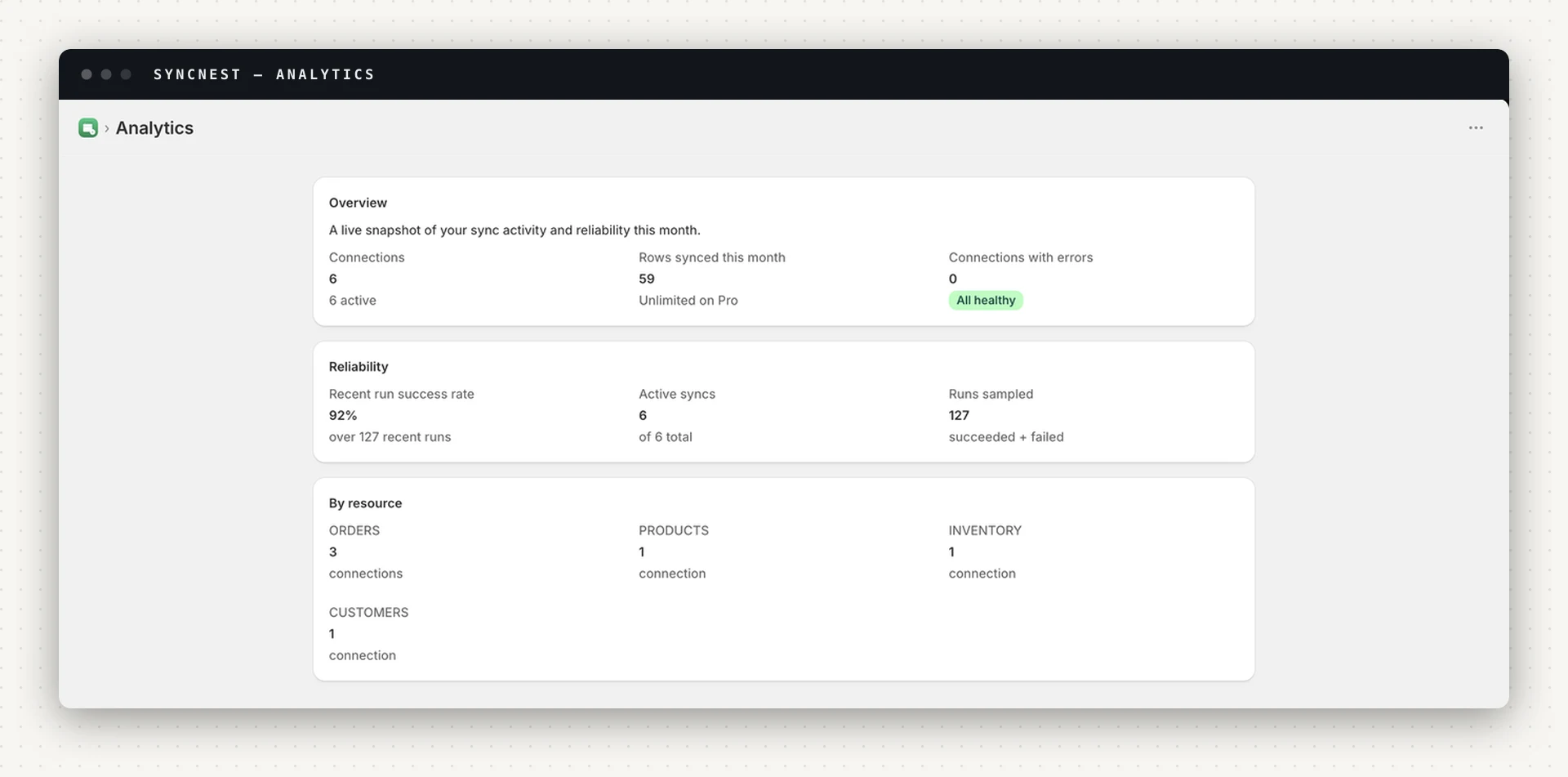
- Analytics. Success rate over recent runs and errors by resource. Use it for "is this one bad row or is this sync broken?"
- Settings. Whether Google is still connected. A revoked or expired token takes every sync down at once, which is easy to mistake for something subtler.
Three things that are not failures
- A plan notice. Over your sync limit, or over your monthly row cap, and syncs pause with a message saying which. Deliberately not styled as an error, pausing for a plan reason is not the same as breaking, and it would otherwise trigger a "recovered" alert when it cleared.
- A write-back notice on Free. Two-way needs Starter and above; on Free the sync says so rather than running half of itself.
- Line-item mode on the wrong plan. It needs Pro. The sync pauses with a message telling you to turn it off or upgrade, rather than falling back to one-row-per-order and quietly changing the shape of your data.
Set this up once
Open Settings → Failure alerts, put in an address that a human actually reads, and, if you are on Starter or above, connect Slack. Then break something on purpose: set a Status cell to nonsense, push, and confirm the email arrives. An alerting path you have never tested is not an alerting path.
See what SyncNest does, email alerts on every plan, Slack and scheduled reconcile from Starter.