"Two-way sync" sounds symmetrical. It isn't, and the asymmetry is the most useful thing to understand before you turn it on.
Shopify → Sheet is driven by webhooks: the row changes because the record changed. Sheet → Shopify is driven by you: nothing leaves the spreadsheet until a sync runs. That is deliberate. A spreadsheet is a place where people paste, drag-fill and half-finish things, and a live write-back would push every one of those keystrokes into your store.
What a sheet edit can change
Write-back touches the fields the sync maps, and nothing else:
| Resource | Writable from the sheet |
|---|---|
| Orders | Tags, note |
| Inventory | Available quantity, per location |
| Products | Title, status, vendor, type, tags, and price for single-variant products |
Price is the one with a caveat. It writes for products with a single variant. A price edit on a multi-variant product is skipped with a message rather than guessed at, because a single price cell cannot say which variant it meant. If you need multi-variant pricing from a sheet, that is not a thing this does.
Everything not in that table is read-only. A sync will not create orders, delete products, or edit a customer record from the sheet.
When the push actually happens
Three ways, and they are worth telling apart:
- Sync now, on the sync card. On a two-way sync this runs the push first and then pulls.
- Scheduled reconcile, on the Starter plan and above. It re-reads both sides on a schedule and repairs drift.
- Never automatically on a keystroke. There is no watcher on your sheet.
That "push first, then pull" order matters enough that the app confirms it. On a two-way sync, Sync now warns that it will first apply the current contents of the tab to Shopify, overwriting the fields the sync maps, and only then pull. Which is the honest description of what two-way means, and the reason the button asks before it runs.
If you have half-edited a tab and you hit Sync now, the half-edit is what gets applied. Read the confirmation.
Which side wins
Every sync carries a conflict policy, and the default is Shopify wins.
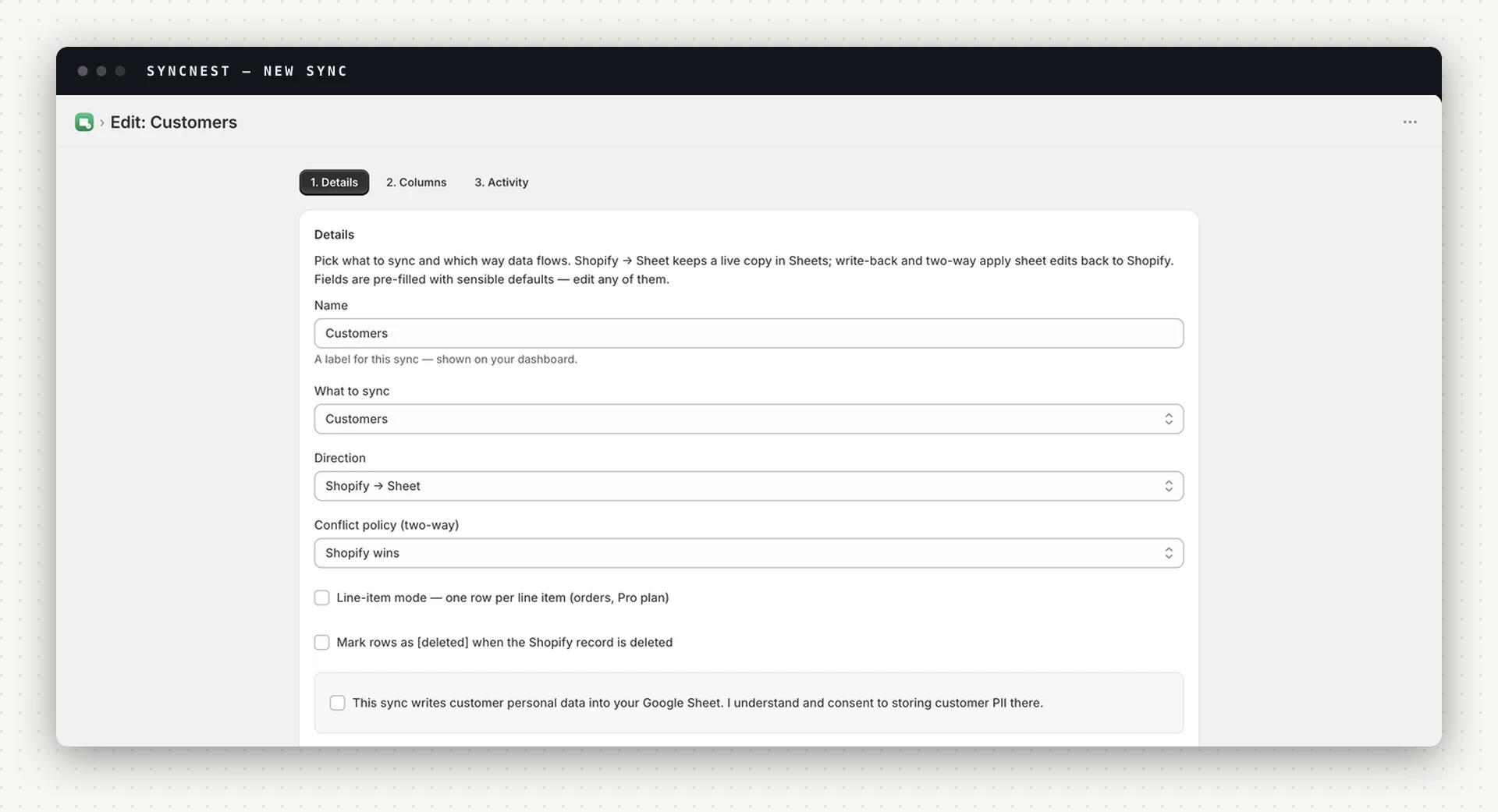
That default is the conservative one: if a record changed in Shopify and the matching row changed in the sheet since the last sync, the store's version survives and the row is corrected. It is the right setting for a sync you are reading rather than writing.
But the bulk-editing templates deliberately ship the other way round. Pick Bulk product & price editor or Bulk inventory editor from the template list and the sync arrives set to sheet wins, because for those jobs the sheet is the source of truth, and Shopify-wins would quietly undo the edits you came to make.
So the rule is not "always pick Shopify wins". It is: whichever side you are editing in should win, and you should know which one that is before the first push.
Three patterns that work
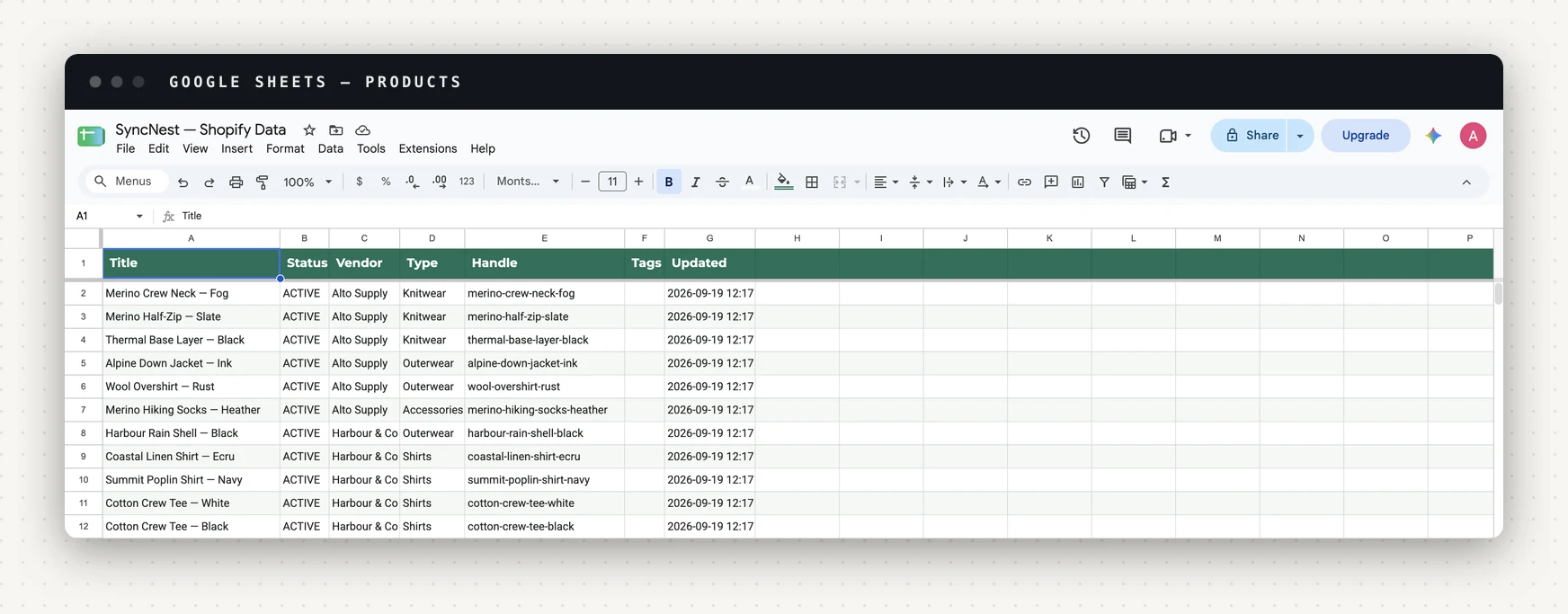
Bulk product editing. A products sync in two-way mode is a bulk editor with version history: filter, sort, fill down a vendor or a tag across 200 rows, then push. Far faster than the admin for repetitive edits, and the sheet keeps a record of what it looked like before.
Stock counts. An inventory sync in two-way mode is a stocktake sheet. Count on a phone, type into the Available column, push once at the end.
Order triage. Tags and notes are writable, so a team can work a queue in the
sheet, tag rows as packed, chase, refund-asked, and have those tags land
on the orders themselves.
The pattern they share: the sheet is a staging area you review, and the push is a deliberate act.
Before you turn it on
- Start one-way. Run the sync as Shopify → Sheet for a day. Check the columns are what you expect before anything can write back.
- Switch direction on a small sync first. Products with a handful of rows, not your whole catalogue.
- Decide the conflict policy on purpose, rather than accepting the default without reading it.
- Know the plan gate. Write-back needs the Starter plan or above. On Free a two-way sync shows a notice saying so, rather than quietly running one-way.
What it does not do
No undo. A push is applied through Shopify's API like any other edit, so reversing it means editing again, from the sheet, or in the admin. That is the reason for the confirmation dialog and for keeping the tab reviewed rather than live.
And it will not invent records. Write-back edits things that already exist; it does not create products or orders from new rows.
See what SyncNest does, write-back is on the Starter plan and above, and every plan can run the read-only direction first.