Most Shopify-to-Sheets setups are a scheduled export: once an hour, or once a night, something dumps the current state of your orders into a tab. It works until someone acts on the sheet between runs, refunds an order that is already marked shipped in row 214, or picks stock that sold out forty minutes ago.
A sync is a different shape. The sheet is not a copy taken at a moment; it is a view that changes when the record changes.
What drives a row
Shopify sends a webhook when an order is created or edited, when stock moves, when a product changes, when a customer record updates, and when a refund is issued. SyncNest listens to those and updates the matching row.
That means two things worth being precise about:
- There is no polling interval to tune. A row updates when the change arrives, not on the next tick of a schedule.
- An edit updates the row that record already owns, rather than appending a second one. SyncNest remembers which row belongs to which Shopify record.
One thing that memory cannot survive: re-sorting the tab. What it stores is a row number, so if you sort the sheet the data moves and the number does not. Subsequent writes land on the row that number now points at, the wrong record. Nothing re-locates it afterwards.
So treat the synced tab as append-only output. If you need a different order, use a Google Sheets filter view (which does not move the data) or a second sheet that reads from it with formulas. Sorting in place is the one edit to avoid.
What you can sync
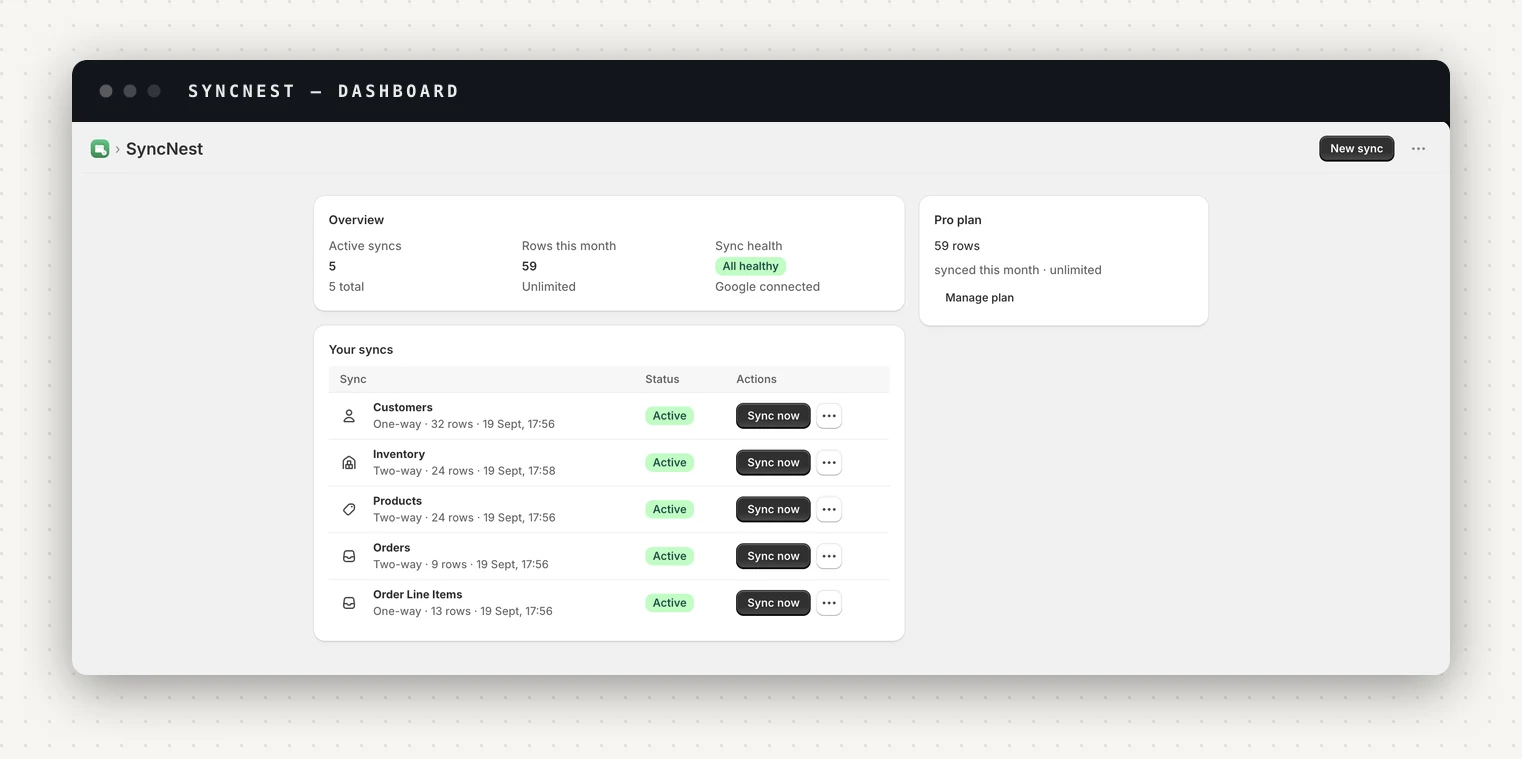
Five resources, on every plan including Free:
| Resource | What lands in the sheet |
|---|---|
| Orders | One row per order, with totals, status, customer and address fields |
| Order line items | One row per line, see below |
| Inventory | Available quantity per item, per location |
| Products | Title, status, vendor, type, handle, tags |
| Customers | The customer record, with a consent step described below |
| Refunds | Refunds against orders |
What changes by plan is not which resources but how many syncs run at once and how many rows a month they may write: one sync and 500 rows on Free, five syncs and 10,000 rows on Starter, unlimited on Pro.
One row per order, or one per line item
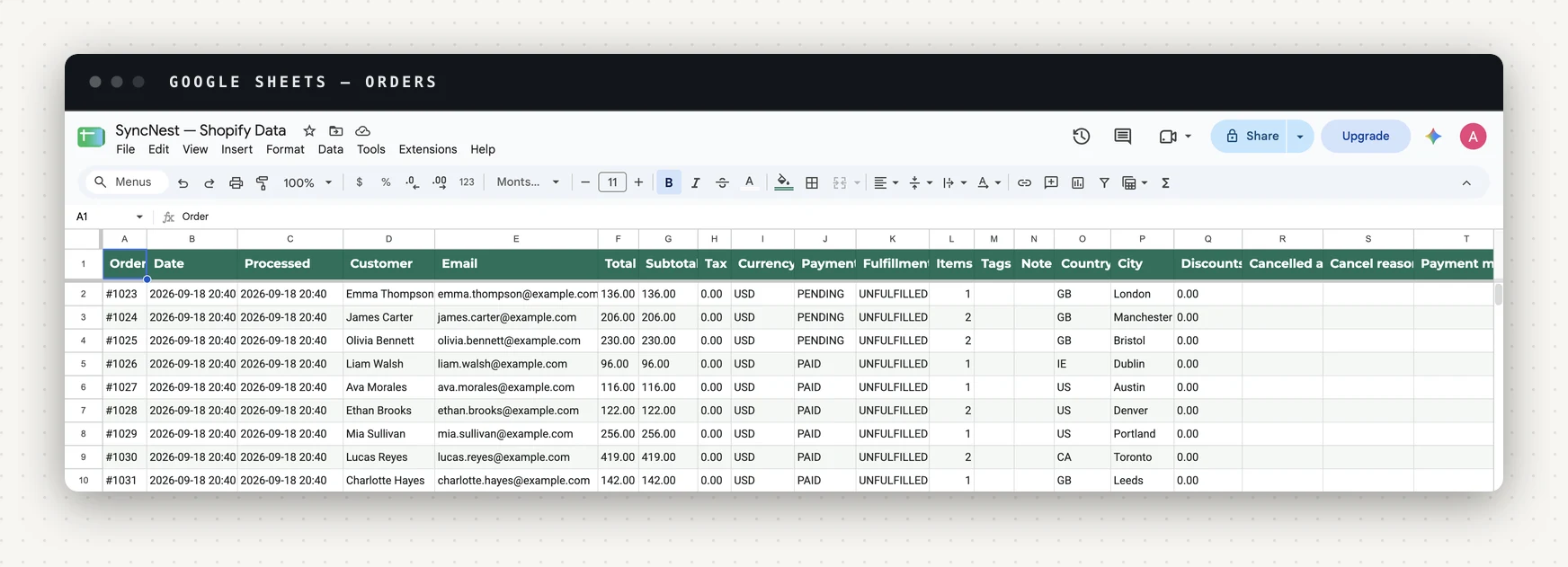
An orders sync gives you one row per order, which is what you want for revenue and fulfilment status. It is the wrong shape for anything about products, an order with three different items is still one row, and the items are a count.
Line-item mode gives you one row per line instead, so the same order appears as many rows as it has items, each with its own SKU, quantity and line price:
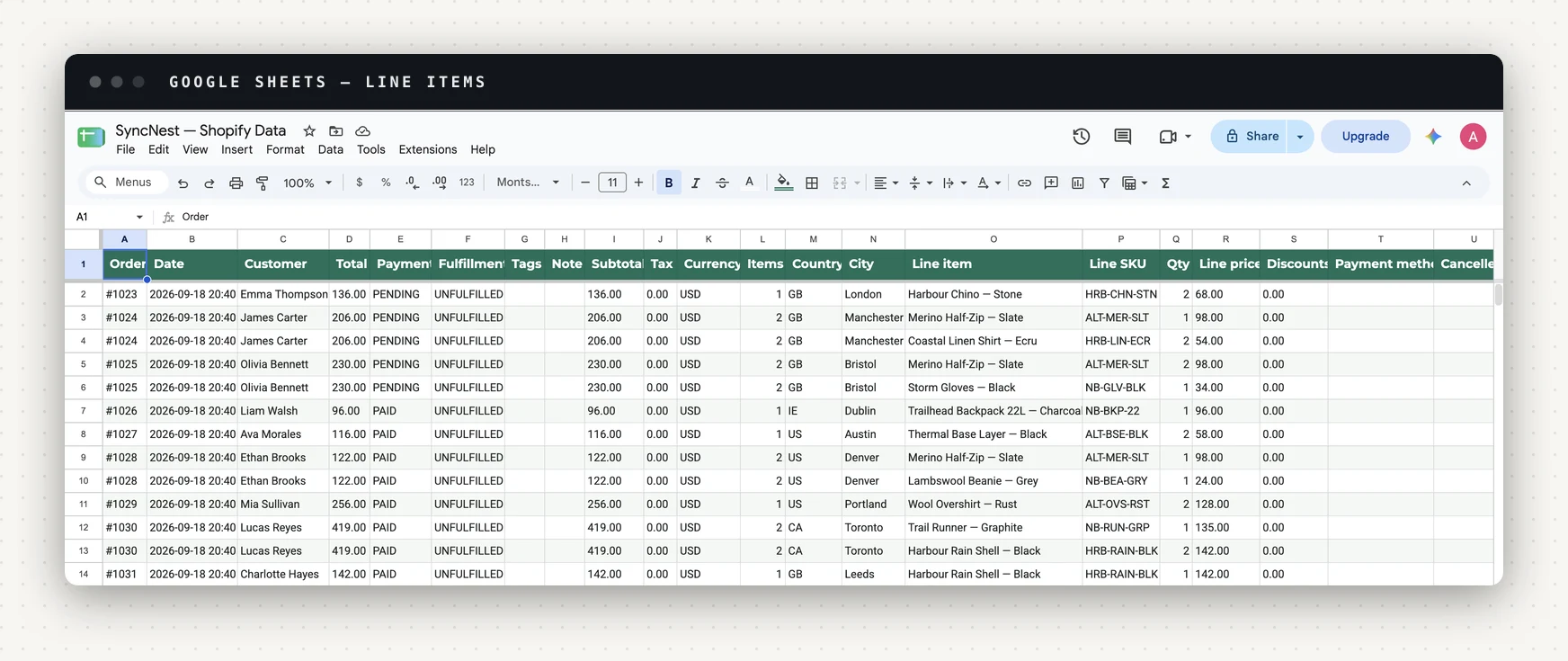
Line-item mode is a per-sync setting on the Pro plan. A practical pattern is to run both: an orders sync for the finance view, and a line-item sync for the product view, into two tabs of the same workbook.
How far back the history goes
A new sync backfills, and for orders the window is the last 60 days. That is not a SyncNest limit. It is the order history Shopify grants apps by default. The connect form says so on the run, and the History page notes it on the backfill record.
The form has an Order history to include option whose All orders setting stays locked until Shopify approves extended order access for your store. It is locked rather than merely hidden, so it cannot half-work if you pick it.
Inventory, products and customers have no such window.
Customer data is a decision, not a default
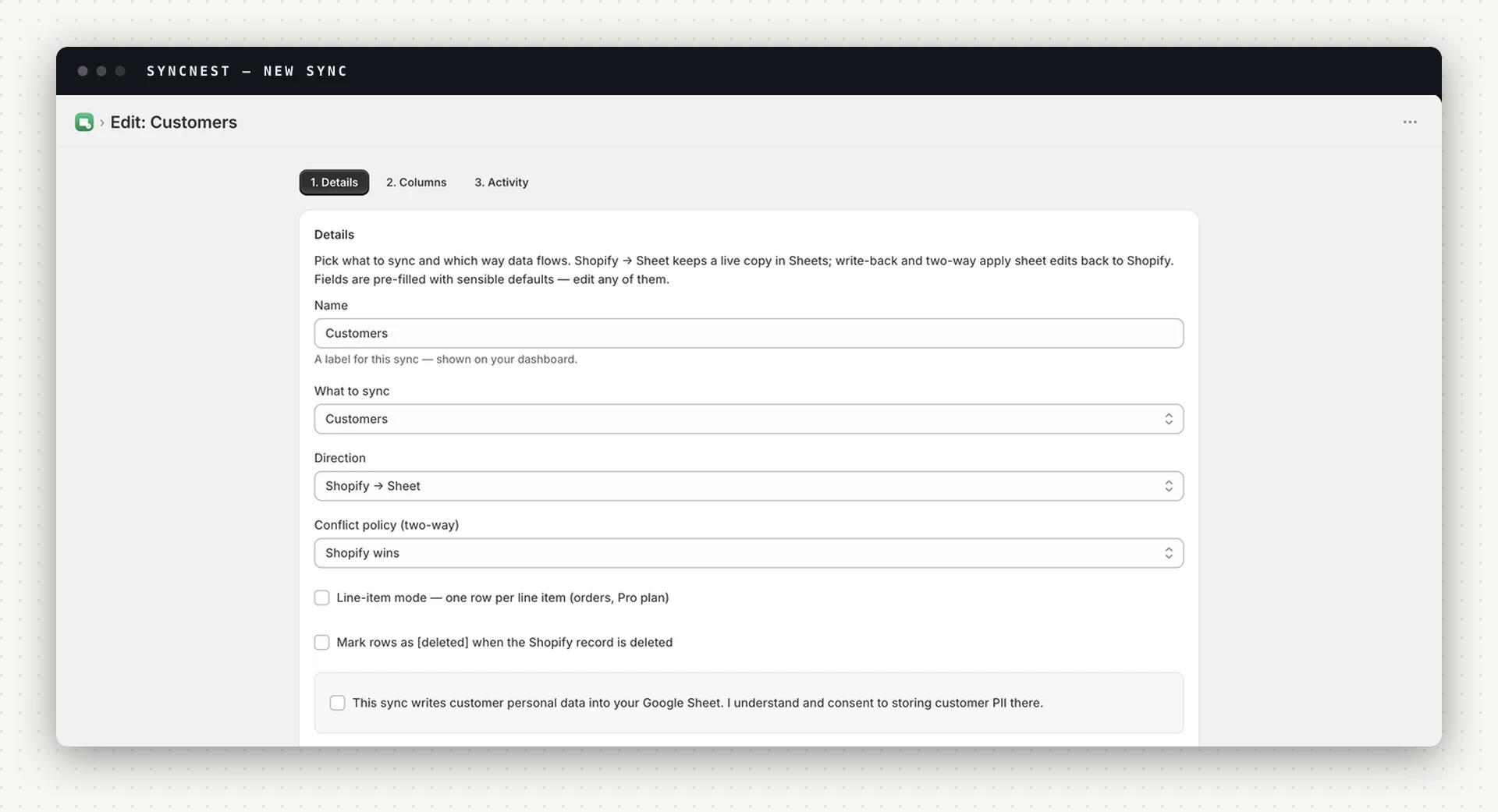
A customers sync writes personal data into a Google Sheet, which is your spreadsheet in your Drive, governed by your own sharing settings. SyncNest makes you say so: the sync form carries a consent checkbox reading "This sync writes customer personal data into your Google Sheet. I understand and consent to storing customer PII there."
It is worth treating that as a real decision rather than a click. A sheet shared with a link is a different privacy posture from a Shopify admin behind staff accounts.
Setting one up
- Connect Google. The consent screen opens in a new tab, because Google does not allow it inside an iframe. SyncNest asks for Sheets access and Drive access limited to files it creates or you pick. It cannot see the rest of your Drive.
- Choose the resource and whether SyncNest should create a sheet for you or add a tab to a workbook you already have.
- Pick the direction. Shopify → Sheet is the read-only one. Two-way and write-back apply sheet edits back to your store, which is a different commitment, see two-way sync.
- Let the backfill finish, then open the sheet and check the columns before you build anything on top of it.
Then leave it alone. The point of a sync is that step five does not exist.
See what SyncNest does, the free plan runs one sync and 500 rows a month, which is enough to check the shape of your data before committing to it.