A watermark on a product photo has one job: make a copy of that photo identifiably yours, wherever it ends up. It doesn't stop anyone copying the image, and there is more on that in how to protect Wix product photos from being copied. This guide is the practical half: setting the mark up, running it across your catalogue, and getting the originals back if you change your mind.
Doing it by hand means exporting every photo, editing it, uploading it again and putting it back in the right gallery slot. For a catalogue of any size, an app that does the whole round trip is the realistic option. The steps below use Watermarkly, which runs in your site's dashboard.
Before you start
Watermarkly needs a Wix site with Wix Stores, on the new Wix Stores catalogue. When you add it, it asks for three permissions:
- Wix Stores: read and manage products, to read product images and put watermarked ones in each product's gallery.
- Media Manager: read and manage, to upload watermarked images to a "Watermarkly" folder in your Media Manager.
- Site owner email, to send failure alerts.
There is no separate account to create and no login. If your store hasn't moved to the new catalogue yet, the app says so and changes nothing until it has.
Design the watermark
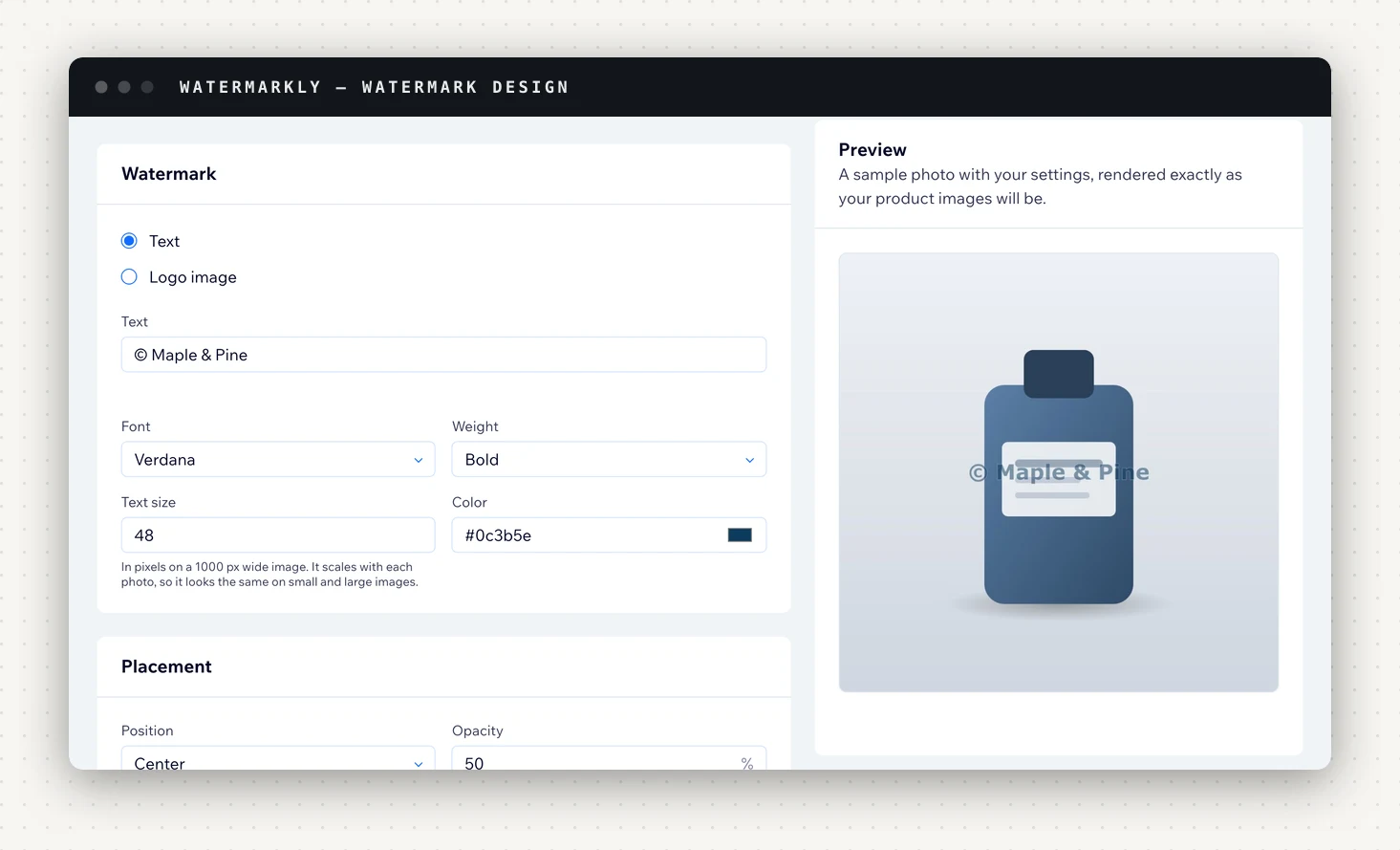
Open Watermark and choose Text or Logo image.
Text is on every plan. Leave the text field empty and the mark reads "© your site name". Otherwise type up to 100 characters, on one line. Then set:
- Font: ten families (Arial, Helvetica, Times New Roman, Courier New, Verdana, Arial Narrow, Roboto, Open Sans, Montserrat and Inter), each Regular or Bold.
- Text size: in pixels on a 1000 px wide image. It scales with each photo, so the mark looks the same on a small image and a large one.
- Color: any colour, typed as a hex value or picked.
Logo image needs a paid plan. Upload a PNG, JPEG, WebP or SVG of up to 5 MB, and set the logo's size as a share of the image's shorter side. A PNG with a transparent background looks best.
Both kinds then share the placement controls: Position (a corner, the centre, or Repeat across the image), Opacity, Rotation from −180 to 180 degrees, and a side margin and a top/bottom margin.
The preview is the point of this page. It draws a sample photo with your settings, rendered exactly as your product images will be, so what you see is what goes into the file. Click Save when it looks right. Nothing in your store changes until you apply.
Choosing position and opacity
Watermarkly starts with white, bold Arial in the bottom-right corner at 50% opacity. That default is a reasonable middle: readable in a screenshot, quiet enough not to fight the product. A few things to weigh before you change it:
- A corner mark can be cropped off. If your photos are being lifted and re-cropped, Repeat across the image is the placement a crop can't remove. It also sits over the product on your own product pages, so try it in the preview before deciding.
- With Repeat, rotation 0 means a diagonal. Change the rotation if you want the repeat to run another way.
- Watch where the product sits. If the bottom-right corner lands on the product in most of your photos, move the mark or raise the margin rather than turning the opacity down until it can't be read.
- Pick a colour that works across the catalogue, not just on the sample. White disappears on a white studio background.
Apply it to the products you already have
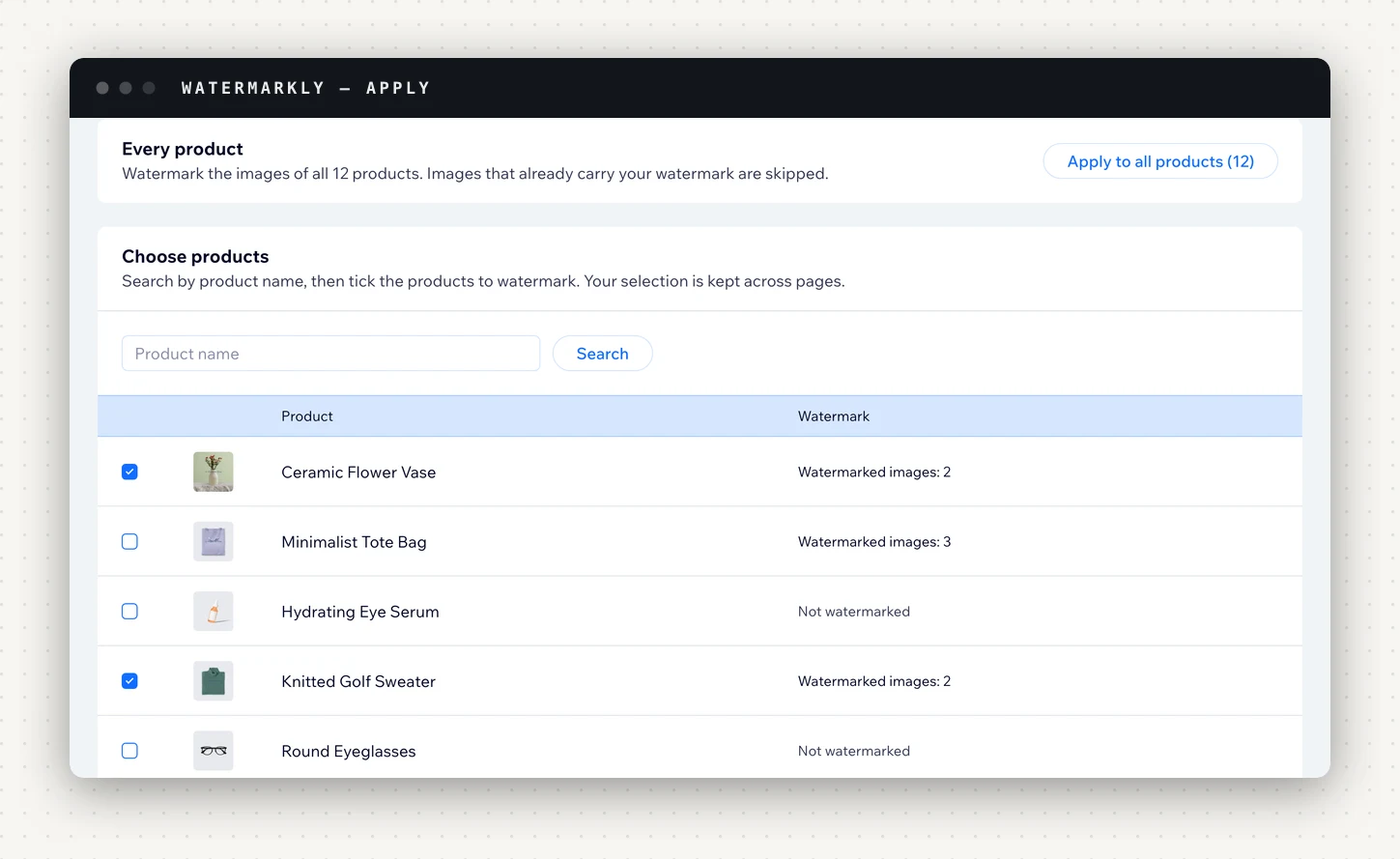
Open Apply. Search for products by name, tick the ones you want and click Apply to selected, up to 500 products at a time. Or use Apply to all products, which asks you to confirm first.
Start with one or two products. Look at them on your live site, on a phone and in a category grid, before you run the whole catalogue: a mark that reads well on a full-size photo can turn to mush at thumbnail size.
Once a run starts, you can leave the page; it keeps going. Home lists it under recent activity with what was watermarked, skipped and failed. Images that already carry your watermark are skipped, so running Apply again never watermarks an image twice.
If you only want the first image of each product marked, turn on Main image only on the Watermark page, and the rest of each gallery is left as it is.
What happens to each image
Watermarkly doesn't edit your photo in place. For each image it:
- keeps an untouched copy of the original, before anything changes;
- draws your watermark onto it, in the image's own format (JPEG, PNG or WebP; a transparent PNG stays transparent);
- uploads the result to the "Watermarkly" folder in your Media Manager;
- puts it in the gallery slot the original held, with the same alt text.
Your original file stays in your Media Manager. Watermarkly never deletes it. Other file types, such as GIFs, are left exactly as they were. If a watermarked image would be over the 10 MB upload limit, Watermarkly lowers the quality and then the size step by step to fit, and leaves the image alone only if even the smallest attempt is too big.
Watermark new products automatically
On paid plans, turn on Auto-apply on the Watermark page. New products are watermarked within minutes, and images added to existing products within the hour, with the design you saved.
Each image counts against your plan's monthly allowance when it is watermarked; an image that fails isn't counted. When the allowance runs out, auto-apply stops, you get an email saying so, and the remaining images wait for the 1st of next month (UTC) or an upgrade.
Paid plans can also add Badges (sale, new and out of stock, chosen from each product's details when the image is watermarked) and Image optimization, which compresses images and limits their width and height so product pages load faster.
Changing the design later
Saving a new design doesn't touch images that are already watermarked; it applies to images watermarked from then on. To move an existing image to the new design, restore it on Restore, then run Apply again. That second run counts against your allowance like the first, so settle the design on a few products before you run the catalogue.
How to restore your originals
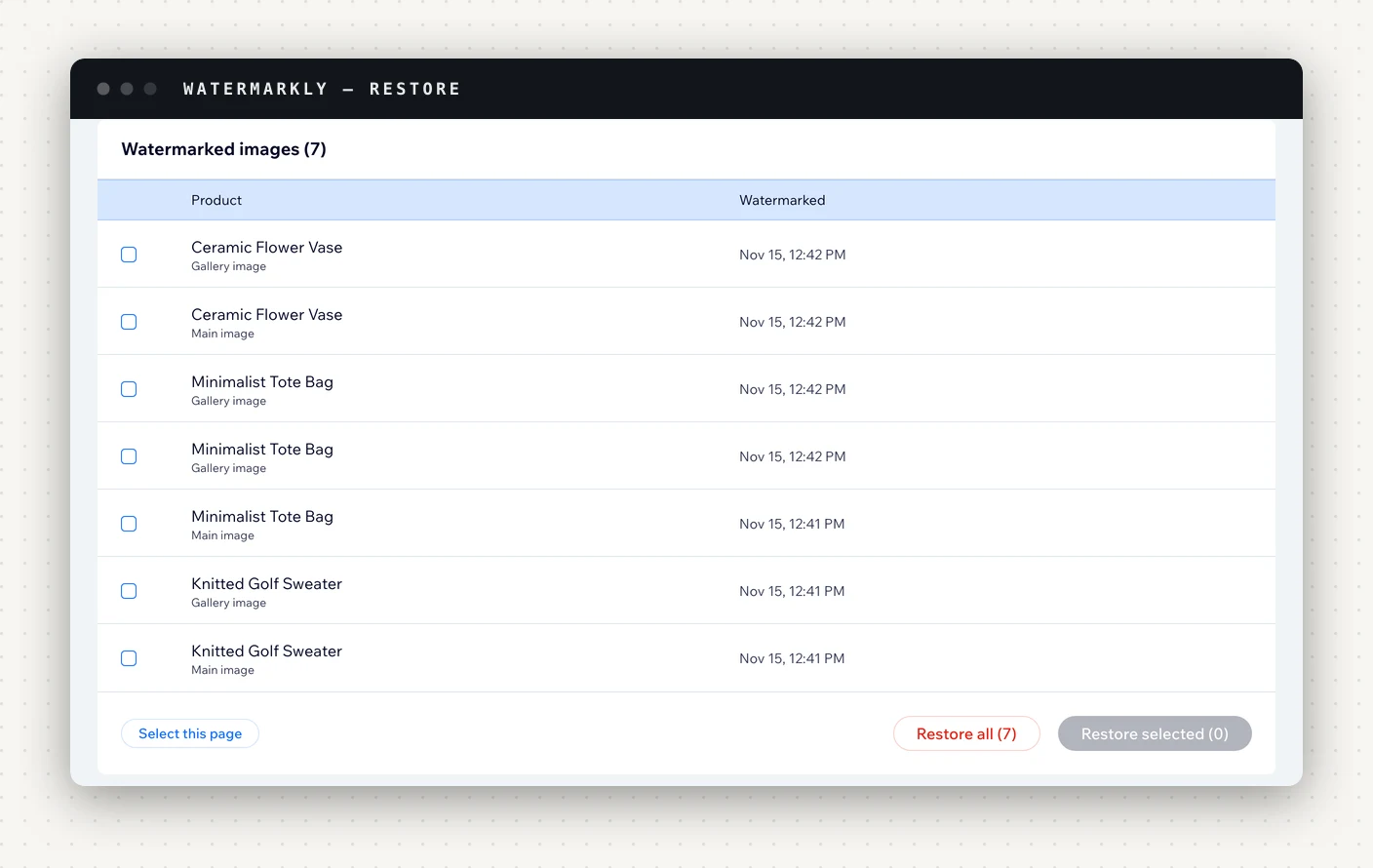
Open Restore, choose the images and click Restore selected, or use Restore all. The original goes back in the same position in the product's gallery, and the watermarked copy is moved to your Media Manager's trash. Restoring doesn't count against your allowance.
Because Watermarkly keeps its own untouched copy, you can restore an original even if you have deleted it from your Media Manager. That copy is kept until you restore the image or delete the product, and for 7 days after you remove the app.
If you plan to remove the app, restore first. Watermarked images stay on your products after it is gone. Your settings, logo and the copies of your originals are kept for 7 days in case you add it again, then permanently deleted.
What the plans cover
| Free | Starter $3.99/mo | Growth $7.99/mo | Enterprise $14.99/mo | |
|---|---|---|---|---|
| Images a month | 50 | 500 | 5,000 | Unlimited |
| Text watermark, live preview, one-click restore | Yes | Yes | Yes | Yes |
| Logo watermark | Yes | Yes | Yes | |
| Auto-apply, badges, image optimisation | Yes | Yes | Yes | |
| Alerts | Email and Slack | Email and Slack | Email and Slack |
Paid plans are sold and billed by Wix. The allowance resets on the 1st of each month (UTC).
Watermarkly is on the Wix App Market. The Free plan covers text watermarks and 50 images a month, enough to watermark a few products and see whether the mark suits your photography before you run the rest.