Most product mistakes aren't dramatic. A CSV import overwrites descriptions you spent a week on. A price change lands on the wrong category. Someone tidying the catalogue deletes a product that was still selling. Each is easy to undo if you have the product as it was the day before, and impossible if you don't.
A product backup only helps if it was taken before the mistake. So the useful questions are what it saves, when, and for how long. This guide answers them for BackNest, which keeps a history of every product in your Wix store, and is plain about what a product backup can't cover.
What a backup saves
BackNest saves a version of a product each time it changes. A version is a copy of the product as it was:
- name, description and URL;
- visibility, ribbon and brand;
- info sections;
- options and variants, prices, SKUs and barcodes, and weight;
- images;
- the categories it's in;
- stock.
Images are kept by reference. BackNest records which images a product used, but doesn't copy the files, and never uploads, changes or deletes anything in your Media Manager. Restoring a version puts those images back on the product, as long as the files are still in your Media Manager. An image you delete from your Media Manager can't be brought back by BackNest.
It doesn't save customer or order data; the app has no access to it.
When versions are saved
There are three moments:
- When you add the app, BackNest makes a first backup of every product. Home shows its progress, and you can leave the page while it runs.
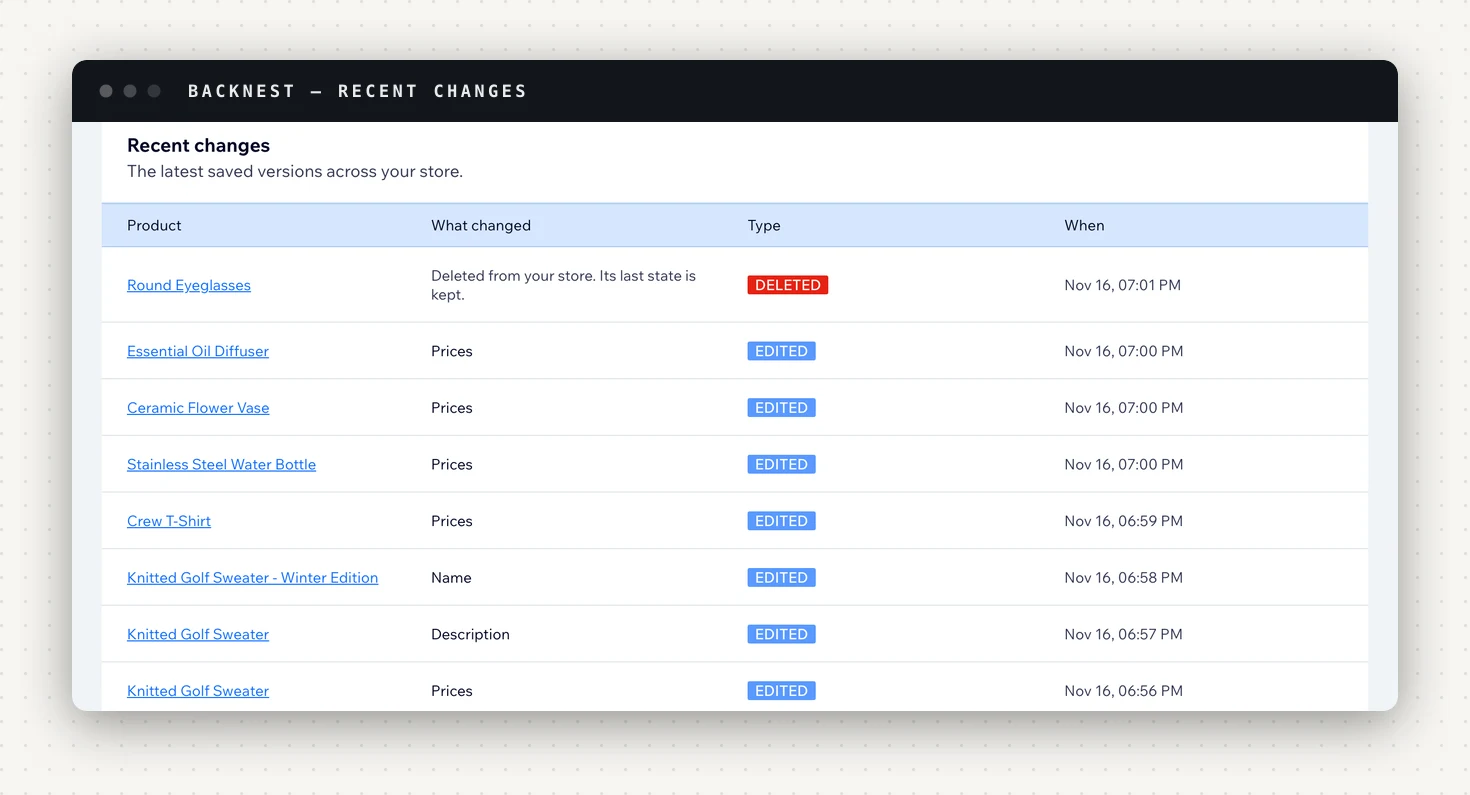
- Every time a product is created, edited or deleted, a new version is saved. You don't schedule anything.
- Every night, BackNest compares the whole catalogue with the backup, to catch any change it wasn't told about. Home shows when that last ran.
That first backup is the starting line. Changes made before you added the app were never seen, so they can't be restored. If you're about to run a big import, add the app and let the first backup finish first.
How long history is kept
| Plan | Price | Products backed up | History kept |
|---|---|---|---|
| Free | $0 | 100 | 7 days |
| Starter | $9/mo | 1,000 | 90 days |
| Growth | $19/mo | 10,000 | 365 days |
| Enterprise | $49/mo | Unlimited | 365 days |
Every night, versions older than your plan's history period are deleted. Two rules soften that:
- Each product's latest version is kept for as long as the app is installed, whatever the plan. So even on Free, a product you haven't touched in a month still has the state it was last saved in.
- A deleted product is the exception. Once its deletion is older than your plan's history period, its history is deleted too. On Free, that means you have 7 days to bring a deleted product back.
A longer history only covers changes saved from then on. Upgrading today doesn't recover versions that were already deleted under the shorter period.
When the catalogue is bigger than the plan
Each plan backs up a number of products. If your store has more, the products already backed up keep their history and get new versions, but products beyond the limit aren't backed up until you upgrade. Home shows how many are backed up, and you get an email when the limit is reached.
That matters in a specific way: a product that was never backed up can't be restored or brought back. If the catalogue is near the limit, check Home after adding products.
Looking at a product's history
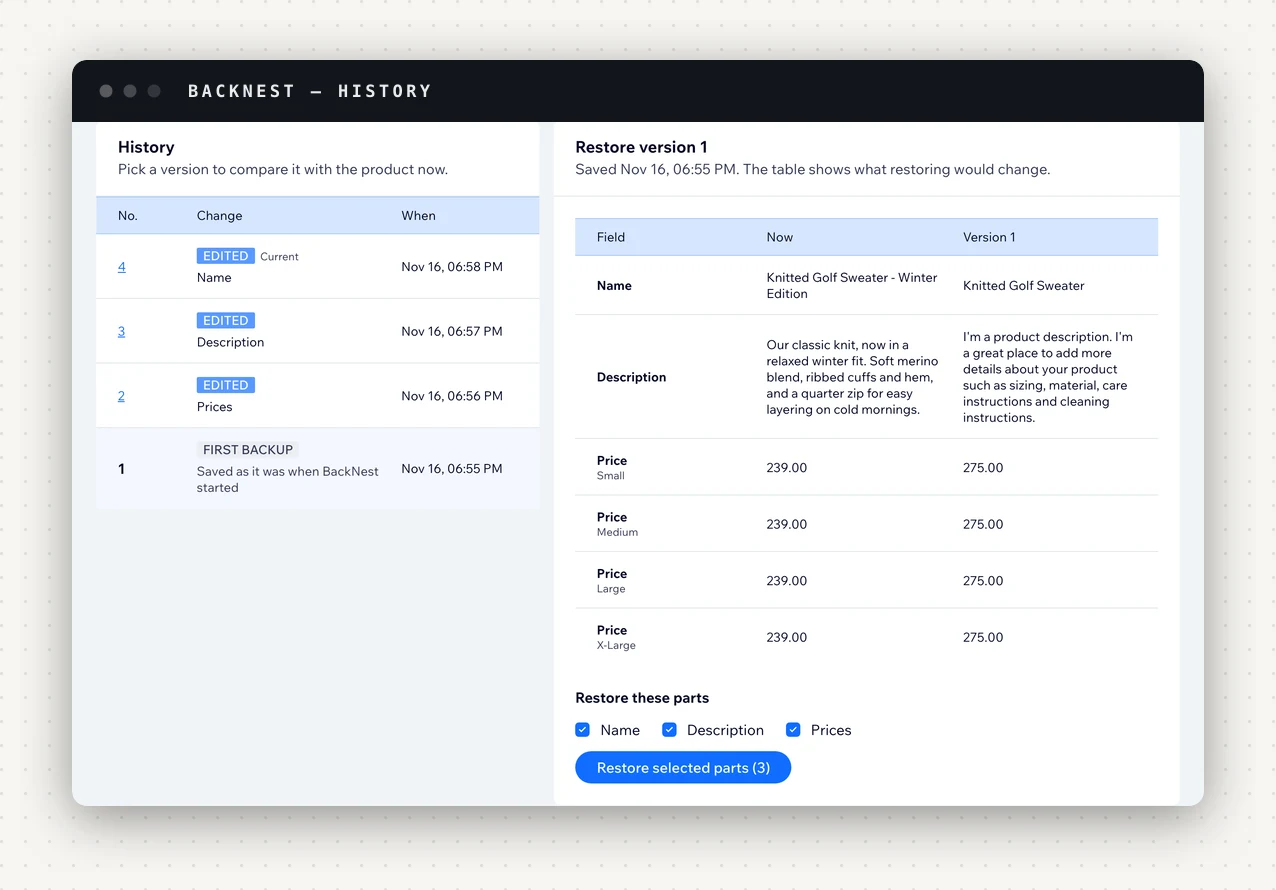
Open Products and pick a product, or search for it by name. Its history lists every saved version. Pick one and a table compares it, part by part, with the product now. To put something back, tick the parts (for example Prices and Description) and click Restore selected parts. Only the parts you tick change.
The full set of ways back, from one product to a bad bulk import, is in how to recover a deleted Wix product and undo bulk changes.
Alerts
BackNest emails you when a restore stops before finishing, and when your store has more products than your plan backs up.
On paid plans it can also email you when many products are deleted within 10 minutes. You set how many under Settings, 5 to start with, and 0 turns it off. It's the alert that tells you about a mass deletion while the fix is still one bulk restore away. Alerts go to the site owner's email unless you set another address; paid plans can add a Slack webhook too.
What a product backup isn't
Be clear-eyed about the scope:
- It covers products, the parts listed above. It isn't a backup of your whole site, your orders or your customers.
- Images stay in your Media Manager, and their safety is the Media Manager's. Delete a file there and BackNest can't restore it.
- It's a safety net, not a guarantee. Keep your own exports of anything you can't afford to lose.
- Removing the app stops all work at once. Your product history and settings are kept for 7 days in case you add the app again, then permanently deleted. Products you restored or brought back stay in your store.
BackNest itself changes your products only when you start a restore, and it never deletes a product.
Getting started
- Add BackNest and approve its permissions: products, inventory (for stock levels) and categories, plus the site owner email for alerts.
- Let the first backup finish; Home shows the progress.
- Make an edit to a test product, then open it under Products and look at the new version. That's the history you'll rely on.
- On a paid plan, set the bulk-delete alert under Settings.
BackNest is on the Wix App Market. The Free plan backs up 100 products with 7 days of history, restores any version part by part and brings back deleted products. Paid plans are sold and billed by Wix.