There are three kinds of product mistake, and each has a different way back:
- One product deleted that shouldn't have been.
- One product edited badly: a wrong price, a description pasted over.
- Many products changed or deleted at once: a bad CSV import, a bulk edit on the wrong selection, a cleanup that went too far.
All three need the same thing first: a saved copy of each product from before the mistake. This guide uses BackNest, which saves a version of every product in your Wix store each time it changes. What it saves, and for how long, is in how to back up your Wix store's products. One rule up front: BackNest can only restore what it saved, so it can't recover a product deleted or changed before it was added to your site.
Bring back a deleted product
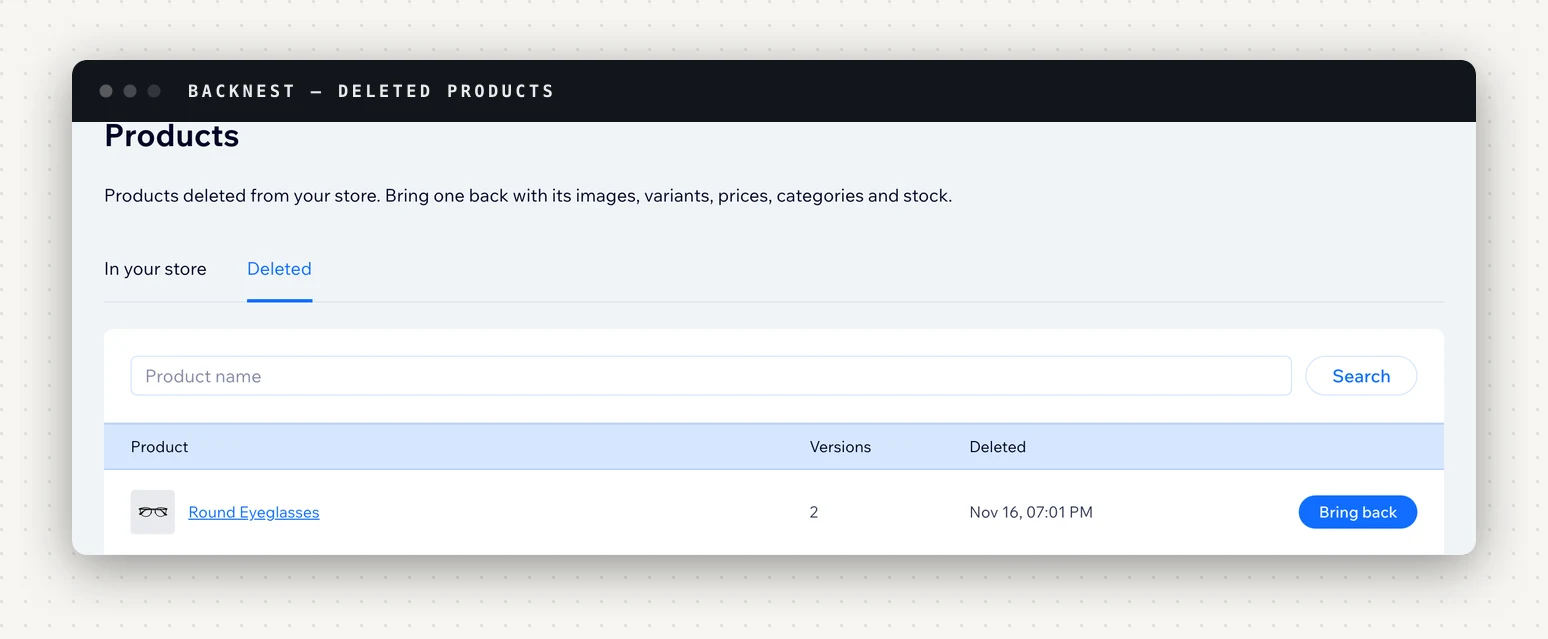
- Open Products, then the Deleted tab.
- Click Bring back next to the product. Or open its history first and bring back an earlier version.
The product is created again in your store with its name, description, URL, images, variants, prices, categories and stock. Bring back is on every plan, including Free.
Three things to know:
- It gets a new product ID. It's a new product with the old one's details, and its history links the two.
- A deleted product can be brought back once. After that, its history points at the product that was created, so open that one instead.
- There's a time limit. A deleted product's history is kept for your plan's history period: 7 days on Free, 90 on Starter, 365 on Growth and Enterprise. Once the deletion is older than that, its history is deleted and the product can't be brought back.
Undo a bad edit on one product
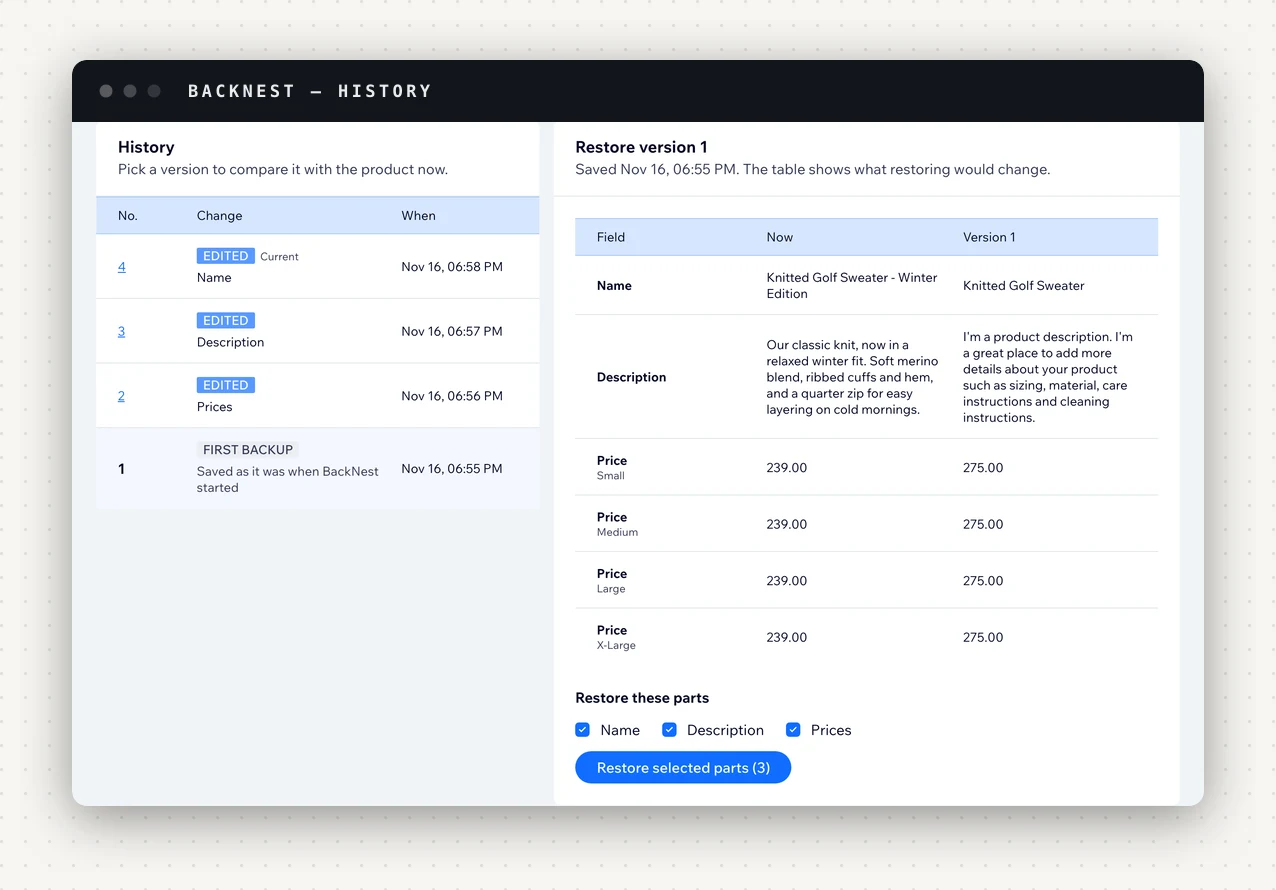
- Open Products and pick the product, or search for it by name.
- Pick an earlier version from its history. A table compares it, part by part, with the product now.
- Tick the parts to put back, for example Prices and Description, and click Restore selected parts.
Only the parts you tick change; everything else stays as it is. That's what makes it safe after a mixed day: you can take back the price someone got wrong without undoing the new photos someone else added.
A restore is undoable the same way. The product's state just before the restore stays in its history, so if you put back the wrong thing, restore that version.
Variants have one limit. If the variants have changed since the version you're restoring, values are put back on the variants the product still has. A restore doesn't add or remove variants, and BackNest tells you which variants it couldn't restore.
Undo a bad import or bulk edit
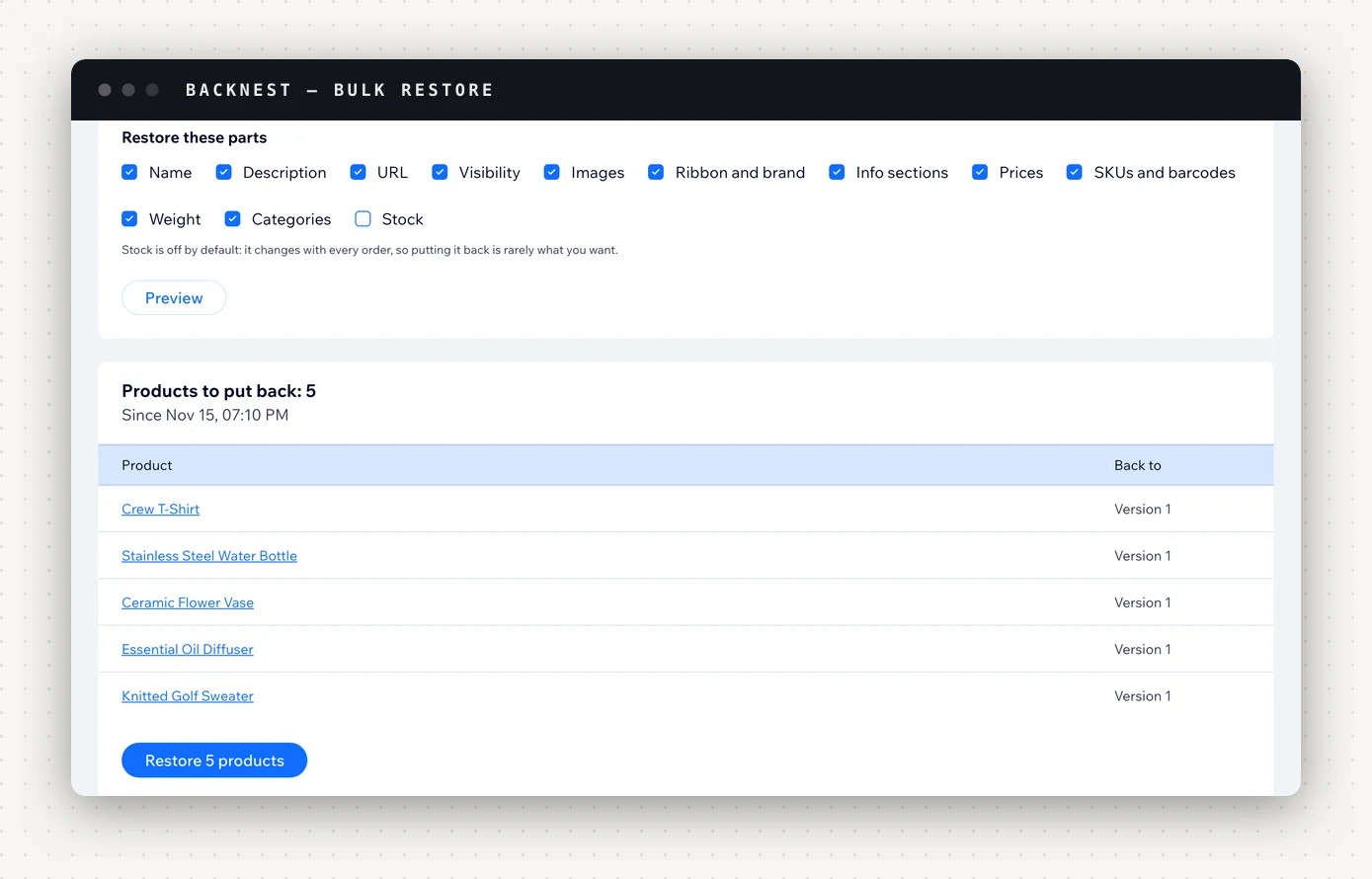
When the damage is across many products, use Bulk restore (paid plans):
- Choose what to restore: products changed since a time, put back as they were then; or products deleted since a time, brought back.
- Choose the time: the last hour, 6 hours, 24 hours, 3 days, 7 days, or a date and time you pick, as far back as your plan keeps history.
- Choose the parts to restore.
- Check the preview, which lists the products and the version each goes back to, then start the restore. You can leave the page; it keeps running.
Stock is off by default. Stock changes with every order, so putting it back to how it was before the import is rarely what you want. Tick it only if the import itself changed stock.
Pick the time just before the mistake. "Changed since" restores every product changed in that window, including good edits made after the import. A tight window keeps those.
BackNest runs one bulk restore at a time per site; if one is running, wait for it to finish.
Undo the undo
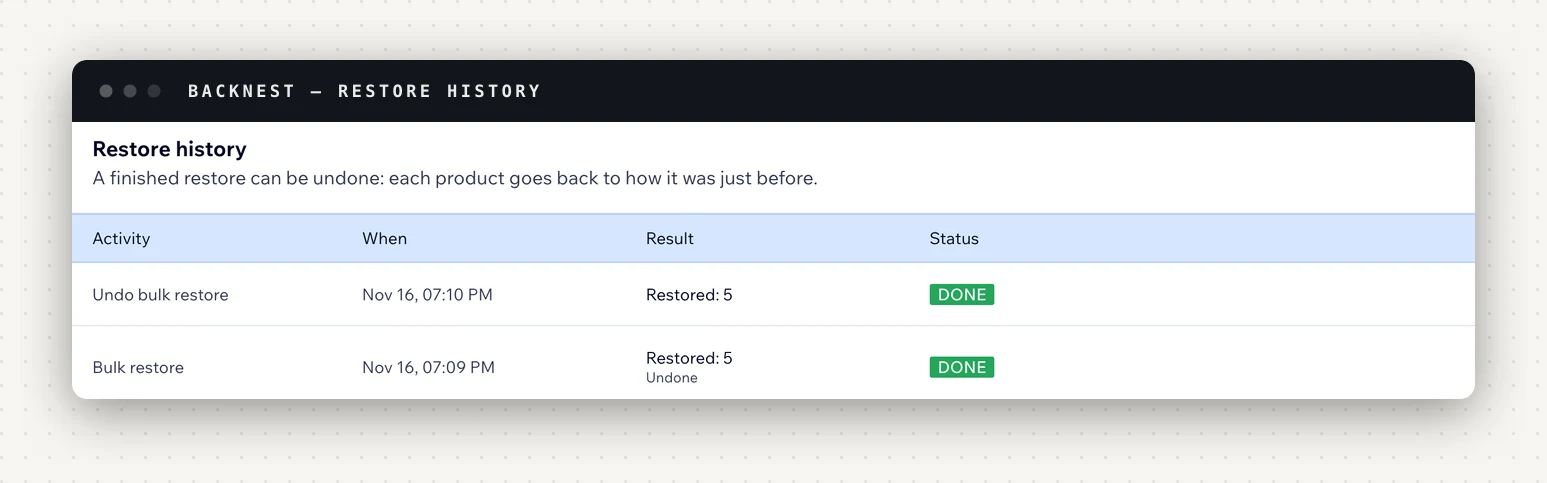
A finished bulk restore can be undone from Restore history: each product it changed goes back to how it was just before. So a bulk restore that went wider than you meant isn't a second disaster.
One exception: products a bulk restore brought back stay in your store. Undo doesn't delete them; delete them in Wix if you don't want them.
What can't come back
Being straight about the limits:
- Images deleted from your Media Manager. BackNest keeps images by reference and never uploads, changes or deletes anything in your Media Manager, so an image deleted there can't be brought back by BackNest.
- Anything older than your plan's history. Versions past the history period are deleted every night. Each product's latest version is always kept while the app is installed, but a deleted product's history goes once the deletion is older than the period.
- Products that were never backed up. That's changes made before you added BackNest, and products beyond your plan's product limit (100 on Free, 1,000 on Starter, 10,000 on Growth).
- A category that no longer exists. The product goes back into its other categories; create the category again in Wix and add the product if you need it.
- Occasionally, stock. If Wix doesn't accept a stock level, the rest of the restore still goes through and BackNest tells you to set that product's stock by hand.
BackNest is a safety net, not a guarantee: keep your own exports of anything you can't afford to lose.
Find out early
The sooner you notice, the smaller the window to restore and the fewer good edits caught in it. On paid plans, BackNest can email you when many products are deleted within 10 minutes: set how many under Settings (0 turns it off). The email points you at Bulk restore. Paid plans can send the same alerts to Slack.
BackNest is on the Wix App Market. Bring back and part-by-part restore are on every plan, including Free. Bulk restore with undo and the bulk-delete alert start on Starter at $9 a month, billed by Wix.