A product grid looks uneven long before anyone can say why. Usually it's one of three things, and often all of them:
- The photos are different shapes. A landscape shot from one supplier, a tall portrait from another, a square you took yourself.
- The products fill different shares of the photo. One mug fills the frame edge to edge; the next is a small object in a sea of white.
- The backgrounds don't match. Pure white beside off-white beside a light grey studio sweep.
Resizing the files to the same pixel dimensions only fixes the first, and only if you're willing to stretch or crop by hand. Fixing all three means reframing each photo: the same shape, the product at the same size inside it, on a background that matches. That's what FrameNest does, and the settings below map one to one onto the three causes.
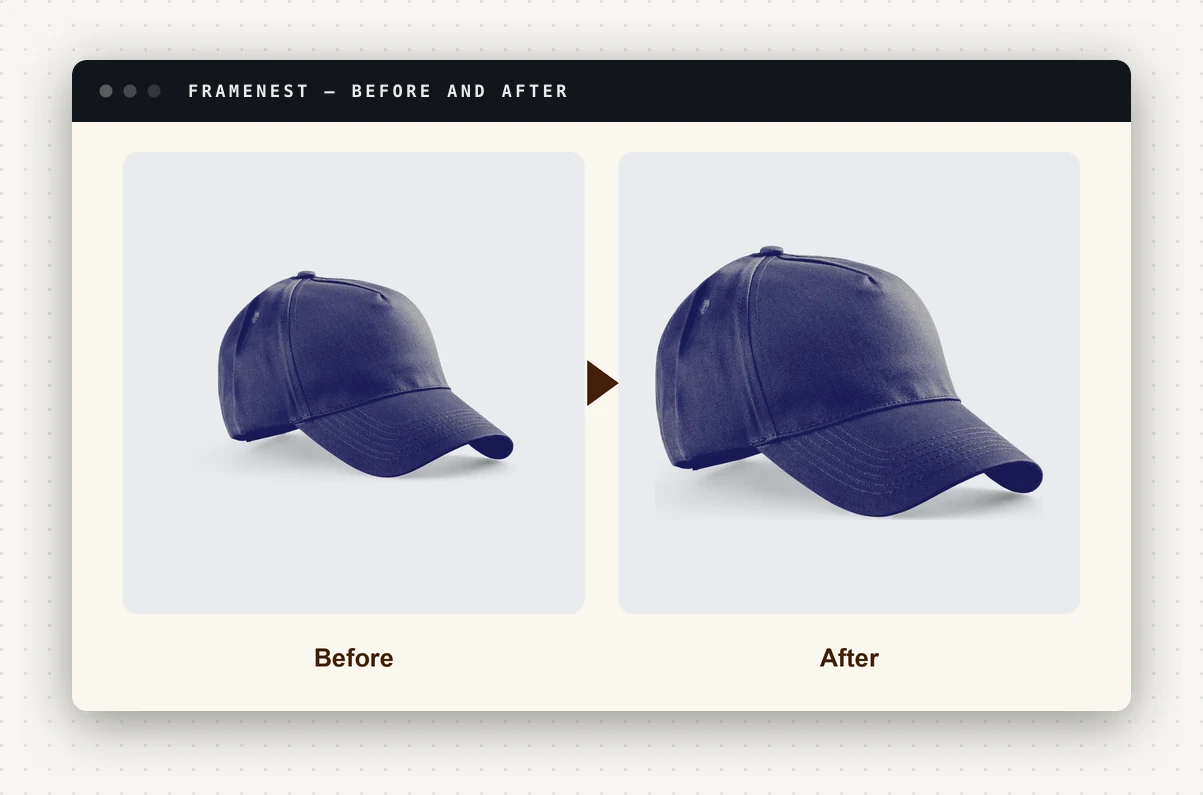
The four settings that decide it
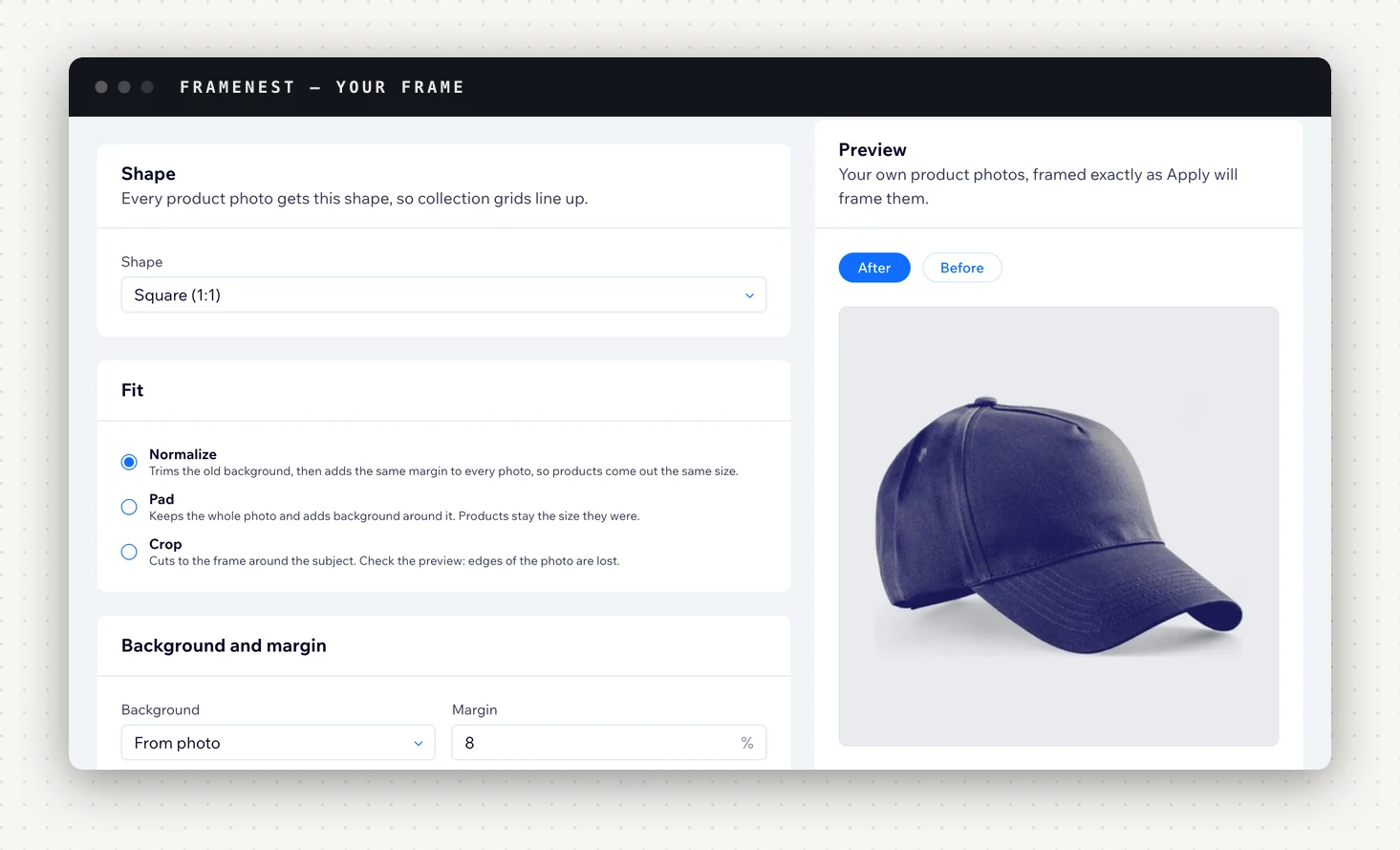
Open Frame. Everything that matters is on one page, with a preview of your own product photos, before and after, framed exactly as Apply will frame them.
Shape
Every product photo gets this shape, so the grid lines up. The choices are Square (1:1), Portrait (4:5, 3:4 or 2:3), Landscape (16:9), or a custom shape. Pick the one your site's design shows product photos at; there is more on choosing in how to make Wix product photos square.
Fit
This is the setting that decides whether products come out the same size.
| Fit | What it does | Products end up | What you lose |
|---|---|---|---|
| Normalize | Trims the old background, then adds the same margin to every photo | The same size | Nothing of the product |
| Pad | Keeps the whole photo and adds background around it | The size they were | Nothing |
| Crop | Cuts to the frame around the subject | Cut with the photo | The edges of the photo |
For an uneven grid, Normalize is the one that fixes cause 2. A small product surrounded by empty background has that background trimmed away and comes out the same size as a product that already filled its photo. With Enlarge small photos off, Normalize enlarges a product at most to twice its size in the original, so it gets bigger without going blurry.
Pad is right when the whole photo matters, for example a styled scene where the setting is part of the shot. Crop suits photos with room to spare around the product; check the preview, because whatever is outside the frame is gone.
Background
The background fills whatever space the frame adds. The choices are From photo, White, Grey, Black, Transparent or a colour you choose.
From photo is the default, and the reason is worth knowing. FrameNest doesn't cut the product out of its photo. Normalize trims plain background from around the product, but the background inside the rectangle the product sits in stays as it was shot. So a light grey studio photo framed on pure white comes out as a grey box inside a white frame. From photo takes each photo's own edge colour instead, so a grey studio shot gets a grey frame and the join disappears.
Choose a fixed colour when your photos were shot on that colour already, or when the frame is meant to show. Transparent keeps PNG and WebP photos see-through; JPEG has no transparency, so JPEG photos get white.
This also means FrameNest won't turn a set of photos on different backgrounds into one background colour. It evens out the space around each product; the background behind the product is the photo's own.
Margin
The space around the product on every side, as a share of the frame: 0 to 25%. The default is 8%. The same margin on every photo is what makes a grid read as one set. Margin applies with Normalize, which is the fit that measures the product.
Photos FrameNest leaves alone
Not every photo needs work, and FrameNest doesn't charge for one it doesn't change. A photo is skipped when:
- It already fits. It has the shape you chose, and with Normalize, the product is already centred with your margin.
- It's too small. It's less than half the Longest side you set and Enlarge small photos is off. Framing it would leave it visibly softer than its neighbors, so you decide: turn enlarging on, or lower the longest side.
- The product runs off the edge and the photo can't be framed cleanly. When a product is cut off at one edge, Normalize won't add background on that side, because the cut would show as a hard line. It cuts the other way around the product instead, and if the product doesn't fit that, the photo is left as it is.
- It isn't a JPEG, PNG or WebP, or the framed file would be over the 10 MB upload limit.
A photo with no plain background to trim, such as a lifestyle shot that fills the frame, is padded to the shape as it is rather than skipped.
Apply, then check the grid
Open Apply. Search for products by name, tick the ones you want and click Apply to selected, up to 500 at a time, or use Apply to all products. You can leave the page while it runs.
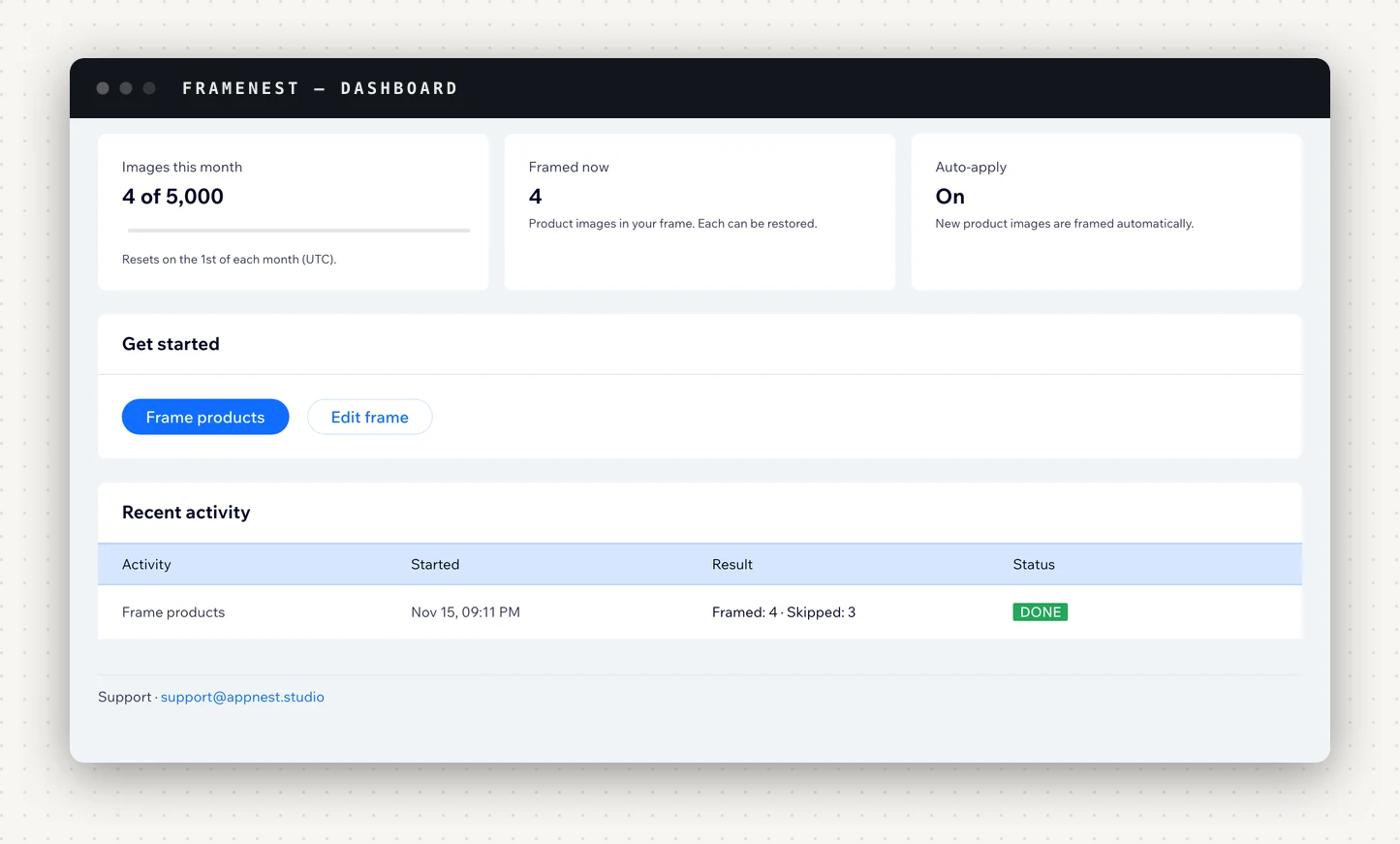
Home lists each run with what was framed, skipped and failed. Framed images go to a "FrameNest" folder in your Media Manager and take the original's place in the product's gallery.
Then look at a category page on your live site. That's where the fix shows: the grid should now read as one set.
If you only want the first image of each product reframed, turn on Main image only on the Frame page and the rest of each gallery is left as it is. On paid plans, Auto-apply frames new products within minutes, and images added to existing products within the hour.
Changing your mind
Saving a new frame doesn't change any images already framed. To reframe one, restore it on Restore, then frame it again on Apply; that second run counts against your allowance like the first.
Restore puts the original back in the same gallery position, for one image, a selection or all of them, and doesn't count against your allowance. FrameNest keeps an untouched copy of each image before changing it, so this works even if you've deleted the original from your Media Manager. That copy is kept until you restore the image or delete the product, and for 7 days after you remove the app. If you remove the app, restore first: framed images stay on your products.
What it costs
Every plan has every shape, fit and background, the preview on your own photos and one-click restore. Plans differ in how many images a month they frame: 50 on Free, 500 on Starter ($3.99/mo), 5,000 on Growth ($7.99/mo) and unlimited on Enterprise ($14.99/mo). Paid plans add auto-apply and Slack alerts. Each image counts only when it is framed; skipped and failed images aren't counted.
FrameNest is on the Wix App Market. The Free plan's 50 images a month are enough to frame a category and see whether the grid comes out the way you want.